Signing documents
For: Members
Your studio may ask you to sign waivers and policies. Required ones must be signed before you can take part. Open Account → Documents.
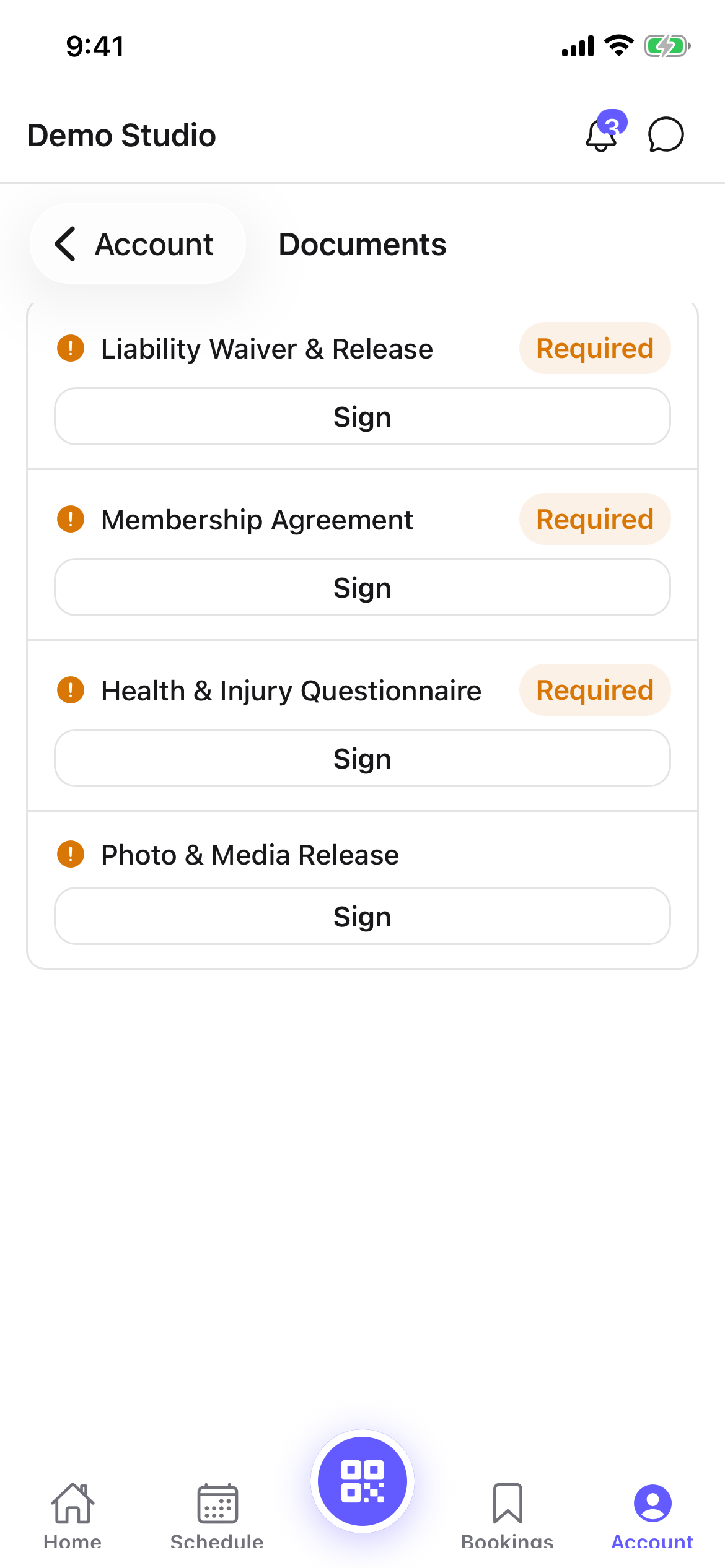
Signing a document
- Open Account → Documents. Each document shows its title and whether it's Required.
- On a document that needs signing, tap Sign.
- Read the full text, shown in the dialog above the signature box. Scroll to the end.
- Type your full legal name to sign, and tap Sign document. You'll see Document signed.
Once signed, the document shows a Signed badge. If your studio publishes a new version, you'll be asked to Re-sign it (the web portal shows Update needed).
Typing your name is a legally binding electronic signature — by signing you confirm you've read and agree to the document.
You'll also be shown the same full text when you sign during joining a studio or when you accept an invitation — you never have to agree to something you can't read.
Reading something you already signed
Tap View on any signed document to re-read it. You'll see the wording exactly as it was when you signed, plus the version, the name you signed with, and the date.
If your studio has since revised the document, View still shows you the older wording you actually agreed to — not the new text. That's your copy of the agreement.
Tips
- Sign any Required documents when you join so nothing blocks your first class.
- If you're asked to re-sign something you signed before, your studio has changed the wording — read the new version before signing, and use View on the old one if you want to compare.
Troubleshooting
| Issue | What to do |
|---|---|
| No documents | Your studio hasn't shared any to sign — there's nothing to do. |
| I'm blocked from booking | A Required document may be unsigned — open Documents and sign it. |
| I already signed but I'm asked again | Your studio changed the wording or published a new version; re-sign the current one. |
| The document text looks empty | Your studio hasn't entered the wording in ClassLift. Ask them for a copy before you sign. |