Migration
For: Owners & Managers
Migration imports your members and their active memberships from a previous platform. Members keep access during a grace window while they re-authorize payment, so there's no double-billing. Go to Compliance & Data → Migration.
The import wizard
The importer walks through four steps: Source, Upload & map, Preview, and Commit.
Before you start: an import can only begin once your studio is ready. If the Start import button is disabled, ClassLift shows what's missing — you need payment setup completed (imported members can't re-authorize payment until your studio is connected), at least one membership plan, and at least one location. Each item links to where you finish it.
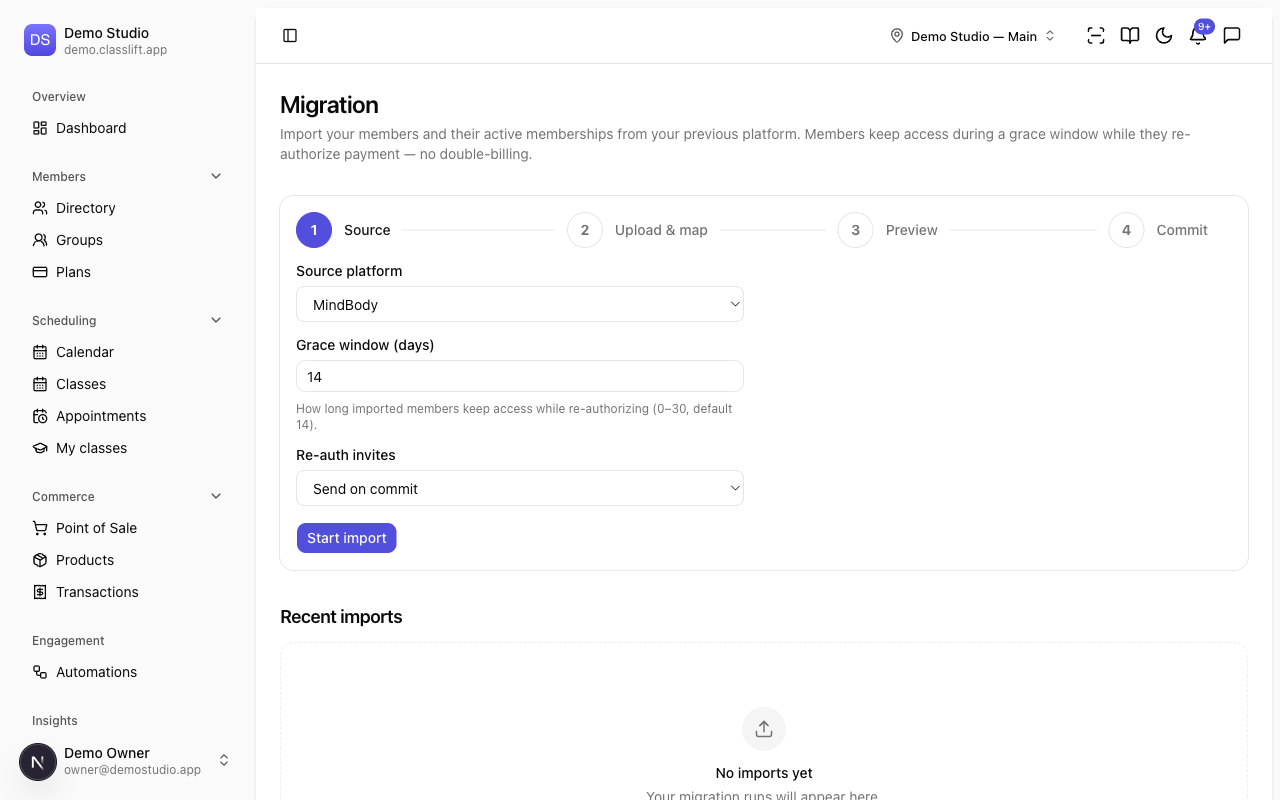
1. Source
- Choose your Source platform — MindBody, Zen Planner, Glofox, Mariana Tek, WellnessLiving, Pike13, or Other / generic CSV.
- Set the Grace window (days) — how long imported members keep access while re-authorizing (0–30, default 14).
- Choose Re-auth invites — Send on commit or Hold (send later).
- Click Start import.
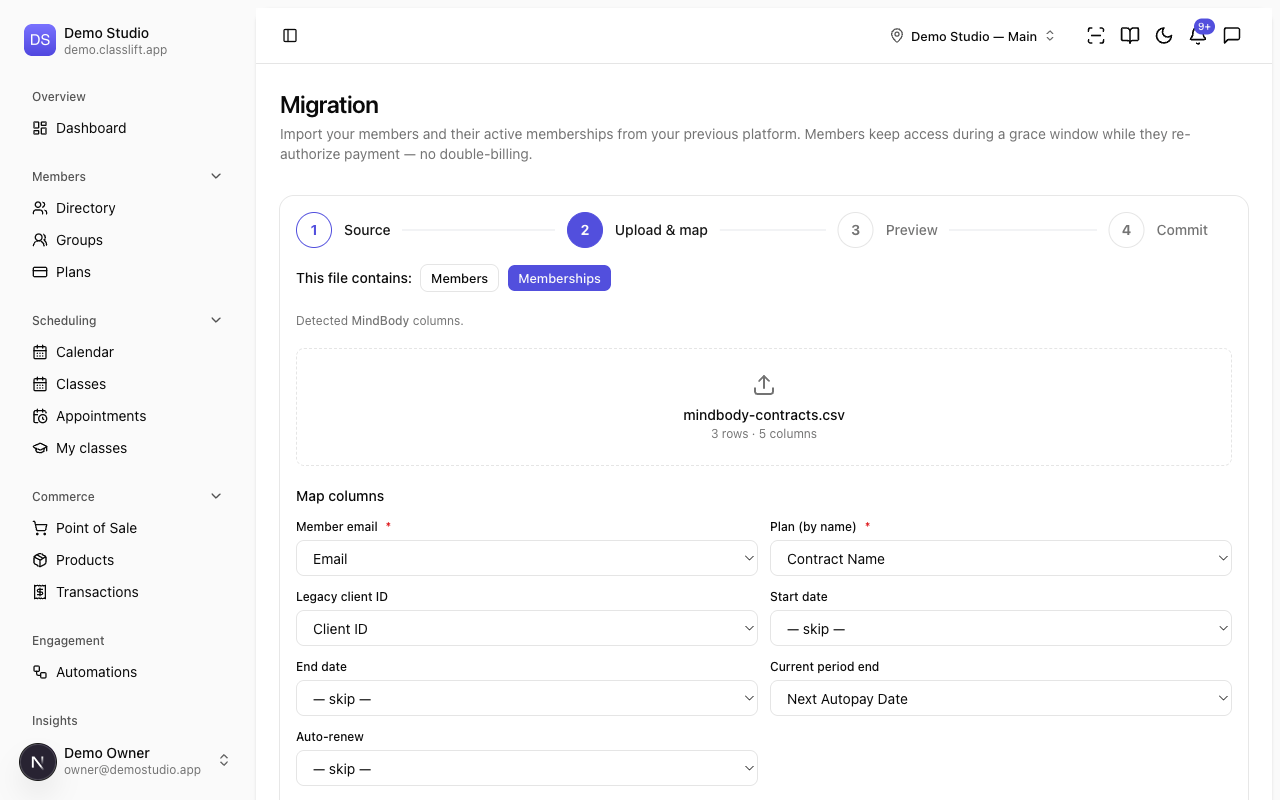
2. Upload & map
- Tell ClassLift whether the file contains Members or Memberships.
- Upload your CSV export. ClassLift proposes a column mapping automatically, and when it recognizes your file it shows a Detected … badge (you can always override it).
- Under Map columns, match each ClassLift field to a column in your file. Required fields are marked with *; choose — skip — for anything you don't have. (For members, Email is required; for memberships, Member email and Plan (by name) are required.)
- Two membership fields are worth getting right:
- Current period end — map this to the member's next renewal / payment date on your old platform (for example, MindBody's Next Payment Date), not a contract end date. This is the single most important value: it schedules each member's first ClassLift charge for their existing renewal date, so no one is double-billed. If you leave it blank or map a past date, that member is charged as soon as they re-authorize.
- Plan (by name) — the text must match one of your ClassLift plan names (case doesn't matter). Create the matching plans first (see Before you start).
- Click Stage rows, then Continue to preview. You can also Cancel import here to start over.
3. Preview
ClassLift validates the staged rows and shows Total, Valid, Warnings, and Failed counts.
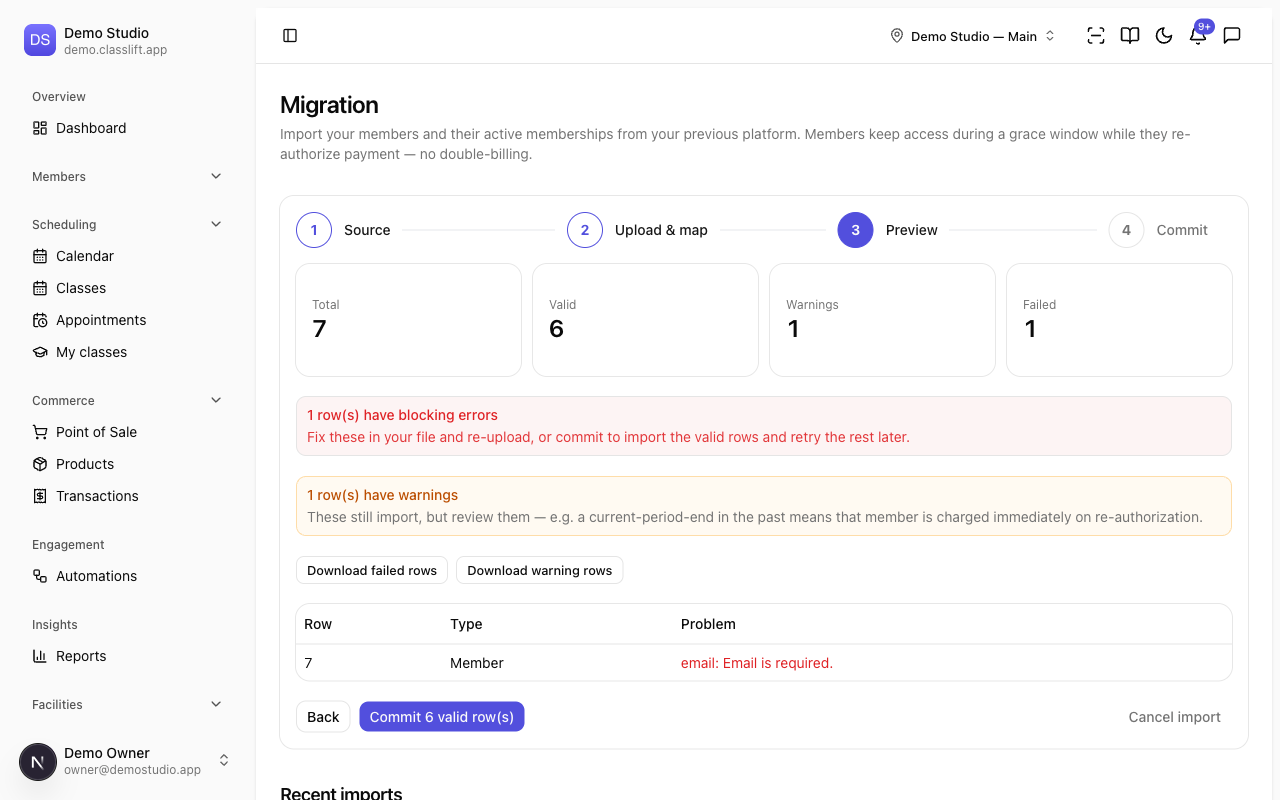
- Failed rows have blocking errors (e.g. a missing email) and won't import. Fix them in your file and re-upload, or commit the valid ones and retry the rest later.
- Warnings don't stop a row from importing, but they're worth a look. Common ones on the current-period-end (the member's next renewal date): a date in the past means that member is charged immediately on re-authorization instead of on their old renewal date, and a date more than a year out usually means a contract end date was mapped by mistake instead of the next renewal/payment date.
- Use Download failed rows / Download warning rows to get a CSV of just those rows and their problems.
4. Commit
Click Commit to import the valid rows. You'll see a summary — how many were imported, skipped (already existed), and failed. If any failed, you can Retry failed rows without re-uploading, and if you chose Hold invites you can Send re-auth invites now.
After importing
- Imported members keep access during the grace window while they re-authorize payment. When a member re-enters their card, their first ClassLift charge is scheduled for their existing renewal date (carried over from your old platform), so they're never charged twice for a period they already paid.
- If a member's grace window passes without re-authorizing, their membership moves to past due — access stays recoverable; it's never auto-cancelled.
- Each run appears under Recent imports with its platform, status, and success/failure counts.
Note on re-authorization invites: invites are queued on commit, but automatic email delivery of them ships in a later phase. If you're mid-migration and want to be sure members are contacted, coordinate with ClassLift — and consider Hold (send later) so you control the timing.
Tips
- Import Members first, then Memberships, so memberships can match members by email.
- Do a small test file first to confirm your column mapping before importing everyone.
Troubleshooting
| Issue | What to do |
|---|---|
| Start import is disabled | Finish the setup ClassLift lists on the Source step — complete payment setup, add a membership plan, and add a location. |
| Rows show blocking errors in Preview | Open the failed-rows table (or Download failed rows), fix them in your CSV, and re-upload — or commit the valid rows and Retry failed rows. |
| A row shows a warning | It still imports. Check the reason — usually the current-period-end date: in the past (member is charged on re-authorization, not their old renewal date) or more than a year out (you likely mapped a contract end date instead of the next renewal date). |
| A membership didn't import | Its Member email must match an imported member, and its Plan (by name) must match a plan you've created. |
| Members haven't received a re-auth invite | Automatic delivery is a later phase — contact ClassLift to coordinate outreach. |