Creating automations
For: Owners & Managers
Text messaging isn't available yet. SMS is awaiting carrier approval, so Send SMS isn't offered in the action list right now. If an automation already has one, the step stays in place marked Not currently sending, and the rest of the automation still runs.
There are three ways to create an automation: add the recommended starter set, pick a template, or build one from scratch. This page covers all three, plus the builder.
The fastest starts
Go to Engagement → Automations. If you have none yet, you'll see No automations yet with two shortcuts:
- Set up recommended automations — adds a curated starter set in one click. Member-facing ones are added paused for you to review; owner alerts are added on.
- Browse templates — opens the Automation templates gallery.
You can reopen the gallery any time with Templates. Each template shows what it does and how many steps it has; click one to create it. Templates include:
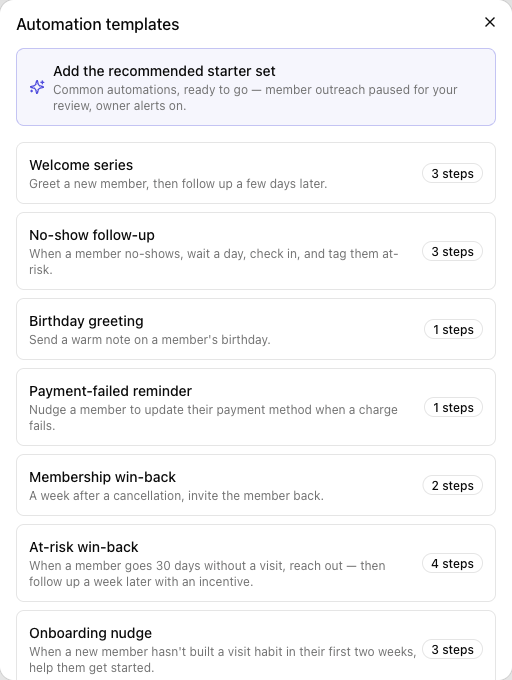
| Template | What it does |
|---|---|
| Welcome series | Greet a new member, then follow up a few days later. |
| No-show follow-up | After a no-show, wait a day, check in, and tag them at-risk. |
| Payment-failed reminder | Nudge a member to update payment when a charge fails. |
| Membership win-back | A week after a cancellation, invite the member back. |
| At-risk win-back | When a member goes 30 days without a visit, reach out — then follow up with an incentive. |
| Onboarding nudge | Help a new member who hasn't built a visit habit in their first two weeks. |
| Frequent no-show reminder | Remind a member of the cancellation policy after repeated no-shows. |
| Birthday greeting | Send a warm note on a member's birthday. |
| Insight alert (notify me) | Send yourself a heads-up when a new insight is raised. |
Building from scratch
Click New automation to create one and open the editor. Then:
- Name it.
- Under Triggers (when this happens), search or pick one or more events — for example Member joins, Payment past due, No-show, Member at-risk (no visit 30d), or Insight raised (notify me).
- (Optional) Add Conditions — each is a field, an operator (is, is not, contains, greater than, …), and a value; all must match to run. Use + Add condition.
- Set Re-enrollment (anti-spam): Every time it triggers, Once per member ever, or Once per member, then wait … days.
- Click Save settings.
Adding the steps
Under Actions (do this, in order), pick an action and click Add step:
| Action | What it does |
|---|---|
| Send email / Send SMS / Send in-app | Message the member, or send an alert to owners / admins. Emails have a Subject; the message box supports Insert variable (like the member's name). |
| Add tag / Remove tag | Label the member (e.g. at_risk). |
| Wait / delay | Pause for a number of minutes, hours, or days before the next step. |
| Call webhook | Send the event to an outside URL. |
Going live
Use Activate to turn it on (or Pause to stop it, Archive to retire it). The Recent runs list shows recent activity once it starts firing.
Tips
- Start from a template and tweak it — it's faster than building from scratch and the copy is already written.
- Set Re-enrollment to a cooldown for outreach automations so a member isn't messaged repeatedly.
- Add a Wait / delay step to space out a series (greet today, follow up in three days).
Troubleshooting
| Issue | What to do |
|---|---|
| Save settings is disabled | Give the automation a name and pick at least one trigger. |
| A message shows a variable warning | A token won't resolve for the chosen trigger and would render blank — remove it or pick a trigger that provides it. |
| It's not firing | Check its Status is active, its conditions aren't too narrow, and re-enrollment hasn't already run for that member. |