Managing products
For: Owners & Managers
Products are what you sell at the till — retail items, drop-ins, and packages. This page covers adding them, giving them variants, and tracking inventory.
Front-desk staff can open Commerce → Products to browse the catalog and check stock — useful when ringing up a sale — but adding, editing, retiring products, and adjusting inventory are owner and manager actions.
Adding a product
Go to Commerce → Products and click Add product.
Fill in the product:
Field What it's for Name What appears at the till, e.g. Branded water bottle. Type Retail, Drop-in, or Package. Can't change after creation. Currency The product's currency. Can't change after creation. Price The base price. Variants can override it. Track inventory Turn on to enforce stock and warn on low levels. You set the actual quantities per location afterwards with Manage stock. To offer options (sizes, flavours), add Variants — each has an Option name and an optional Price override (leave blank to use the base price).
Click Add product. You'll see Product created.
To change a product later, use its ⋯ menu → Edit. Type and currency are fixed after creation.
Setting stock per location
Stock is tracked per location — and, for a product with variants, per variant — so each of your studios has its own count. For a product with Track inventory on, open its ⋯ menu → Manage stock:
- You'll see a section for each location. For a product with variants, each variant (S, M, L…) has its own row; a product without variants has a single row.
- Set In stock for each location (and variant), and optionally a Low-stock alert level for that cell — at or below it, the item is flagged low.
- Click Save stock.
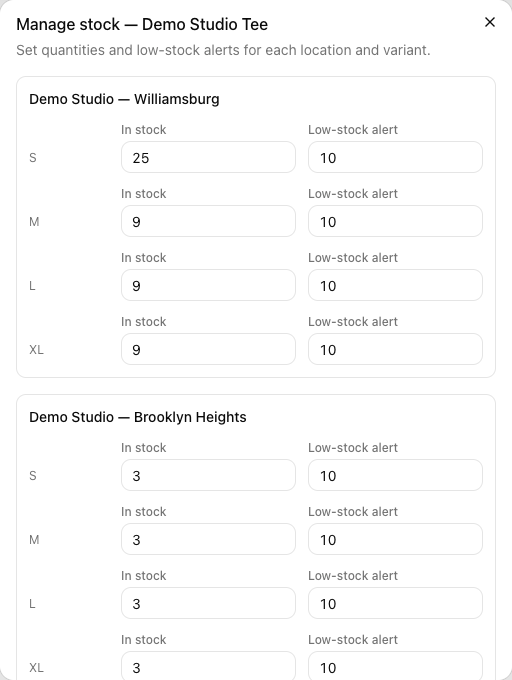
The count a sale draws down is the one at the location where the sale is rung up, so selling at one studio never depletes another's shelf.
The product list
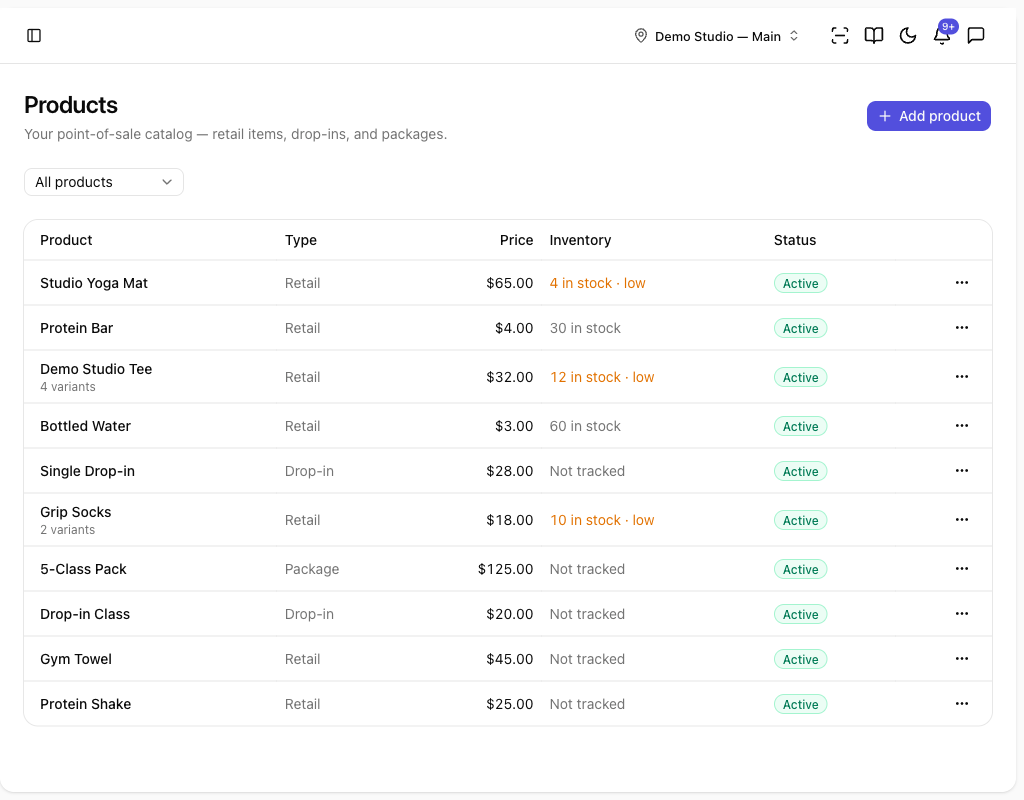
The Products list shows each item's Type (Retail, Drop-in, Package), Price, Inventory, and Status. Filter by Active, Retired, or All products at the top.
The Inventory column reflects the location selected in the top bar: it shows {n} in stock (with · low when at or below the alert level) for that location, Per location when you're viewing All locations (there's no single number across studios), or Not tracked. Switch locations in the top bar to see another studio's counts.
Retiring a product
When you stop selling something, open its ⋯ menu → Retire and confirm on Retire this product? It's removed from the point of sale and can't be sold, but past transactions that included it are unaffected. Retired products show a Retired badge.
Tips
- Turn on Track inventory for physical goods so the till shows Sold out when you run out; leave it off for drop-ins and packages.
- Use Variants for one product with several options (e.g. a t-shirt in S/M/L) instead of separate products — each variant carries its own stock at each location.
- Set a Low-stock alert on the busy locations you want warned about; the till and catalog then flag that cell low before it hits zero.
Troubleshooting
| Issue | What to do |
|---|---|
| A product isn't at the till | Only Active products appear at the point of sale — check it isn't retired. |
| I can't change a product's Type or Currency | These are fixed after creation; retire it and create a new one. |
| A product shows Sold out at the till | Its stock at the selected location is zero — open Manage stock and add stock for that location. |
| The Inventory column shows Per location | You're viewing All locations — pick a specific location in the top bar to see its count. |