Announcements & campaigns
For: Owners & Managers
Text messaging isn't available yet. SMS is awaiting carrier approval, so the SMS option described on this page isn't shown in ClassLift right now — announcements go out by in-app and email. Everything else here works as written.
An announcement is a one-to-many broadcast: one message that reaches everyone in your studio at once — a closure, a schedule change, a holiday timetable. A campaign is the targeted version: the same kind of message aimed at a chosen list of members, like a win-back to the people who've stopped showing up.
Both send each person their own copy. There's no shared thread and no reply-all, so nobody sees who else got it.
Prerequisites & permissions
- Only owners and managers can send announcements. Front-desk staff and instructors don't see the Announce action.
- To message an at-risk list you also need access to Reports, which is owner/manager only.
Sending an announcement
Click the bell in the top bar to open Notifications.
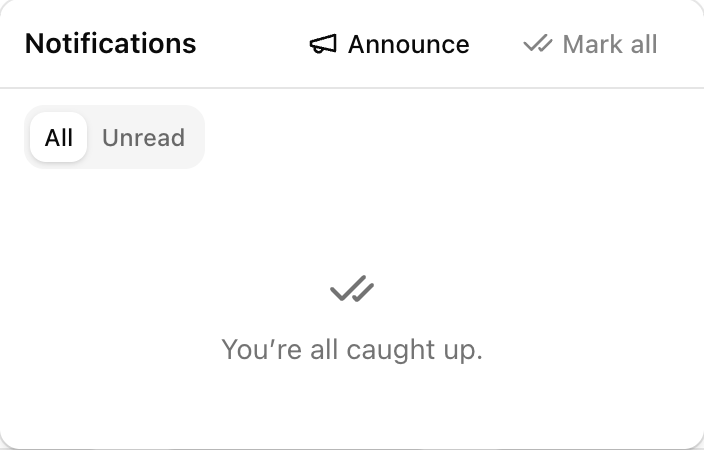
Click Announce. The New announcement dialog opens.
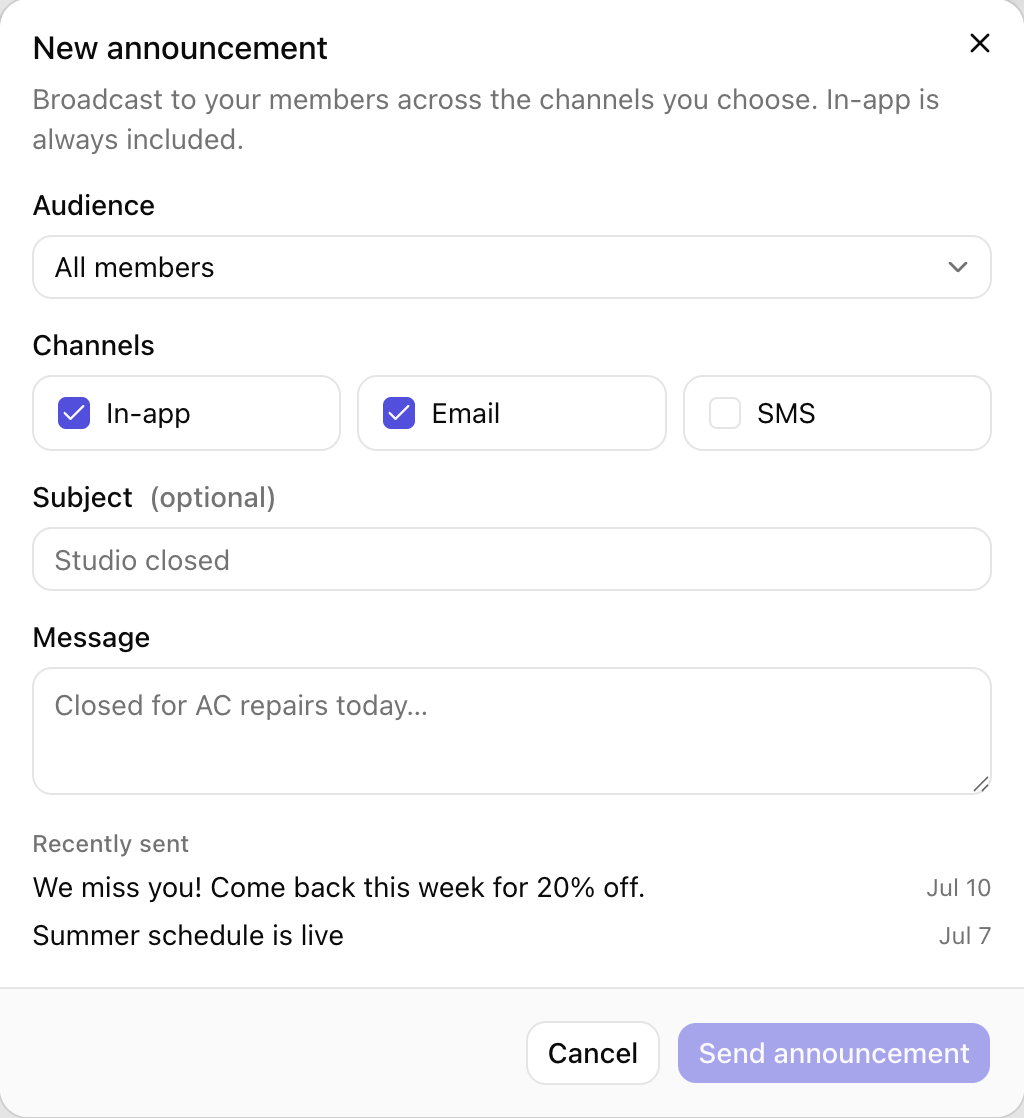
Pick your Audience.
Choose your Channels. In-app is always included and can't be turned off; Email is on by default and SMS is off.
Add an optional Subject (for example Studio closed) and write the Message. The message is required.
Click Send announcement. You'll see a confirmation telling you how many people it reached.
Audience options
| Audience | Who receives it |
|---|---|
| All members | Every active member of your organization. |
| All instructors | Your instructors — useful for a teaching-side notice. |
| All staff | Your front-desk team. |
Channels
| Channel | What it does |
|---|---|
| In-app | Always on. The announcement appears as a banner across the top of ClassLift and lands in each person's Notifications. |
| Sends the announcement by email as well. On by default. | |
| SMS | Also texts the announcement. Off by default — use it only when something is genuinely time-critical. |
The dialog also shows Recently sent — your last few announcements with the date each went out, so you can see at a glance whether something's already been covered.
Sending a campaign to an at-risk list
When you want to reach a specific group rather than everyone, start from the list instead of the bell.
- Go to Insights → Reports and open the Retention tab.
- On the At-risk members card, click View list.
- Tick the members you want to reach.
- Click Message. A dialog opens titled Message N at-risk members.
- Choose your Channels, add an optional Subject, write the Message, and click Send message.
Each member gets their own individual message — there's no group thread, and every recipient's own notification preferences still apply. See Reports for more on working the at-risk list.
What members see
- A banner appears across the top of ClassLift — in the back office and in the member portal — showing the newest announcement they haven't read. Dismissing it with the × marks it read.
- The announcement also sits in their Notifications, so they can find it again after dismissing the banner.
- If they chose email or text when they joined, it reaches them there too.
Tips
- Write a subject. It becomes the bold lead of the banner and makes the notification scannable in a list.
- Keep SMS for genuine urgency — a same-day closure or a cancelled class. Members who've opted out of texts won't get it either way, and over-texting is the fastest way to lose the channel.
- Check Recently sent before you send. It's the quickest way to avoid double-announcing something a colleague already covered.
- Use a campaign, not a broadcast, for win-backs. Messaging every member about a comeback offer annoys the people who never left.
- For anything recurring, use an automation instead — welcome notes, renewal reminders, and win-backs run on their own rather than needing you to remember.
Troubleshooting
| Issue | What to do |
|---|---|
| I don't see Announce in the Notifications panel | Announcements are owner/manager only. Ask an owner to send it, or to change your role under Settings → Team. |
| Fewer people received it than I expected | Only active members of the chosen audience are included, and anyone who has turned that channel off won't get it there — though they'll always see it in-app. |
| The SMS box is ticked but members say they got nothing | Members who didn't agree to texts when they joined, or who replied STOP, are skipped. They still receive the announcement in-app. |
| I need to un-send an announcement | You can't recall one. Send a short follow-up correcting it — members will see both in their Notifications. |