Booking a session
For: Members
Booking a one-on-one session takes a few taps: choose the service, pick a trainer, and tap an open time. This works the same in the mobile app and the web portal.
Prerequisites & permissions
- Your membership needs to include personal training. If it doesn't, you'll see a note when you try to book — ask your studio to add it.
Booking, step by step
Open the Bookings tab and tap Book 1:1 (on the web portal, open My bookings and click Book a 1:1).
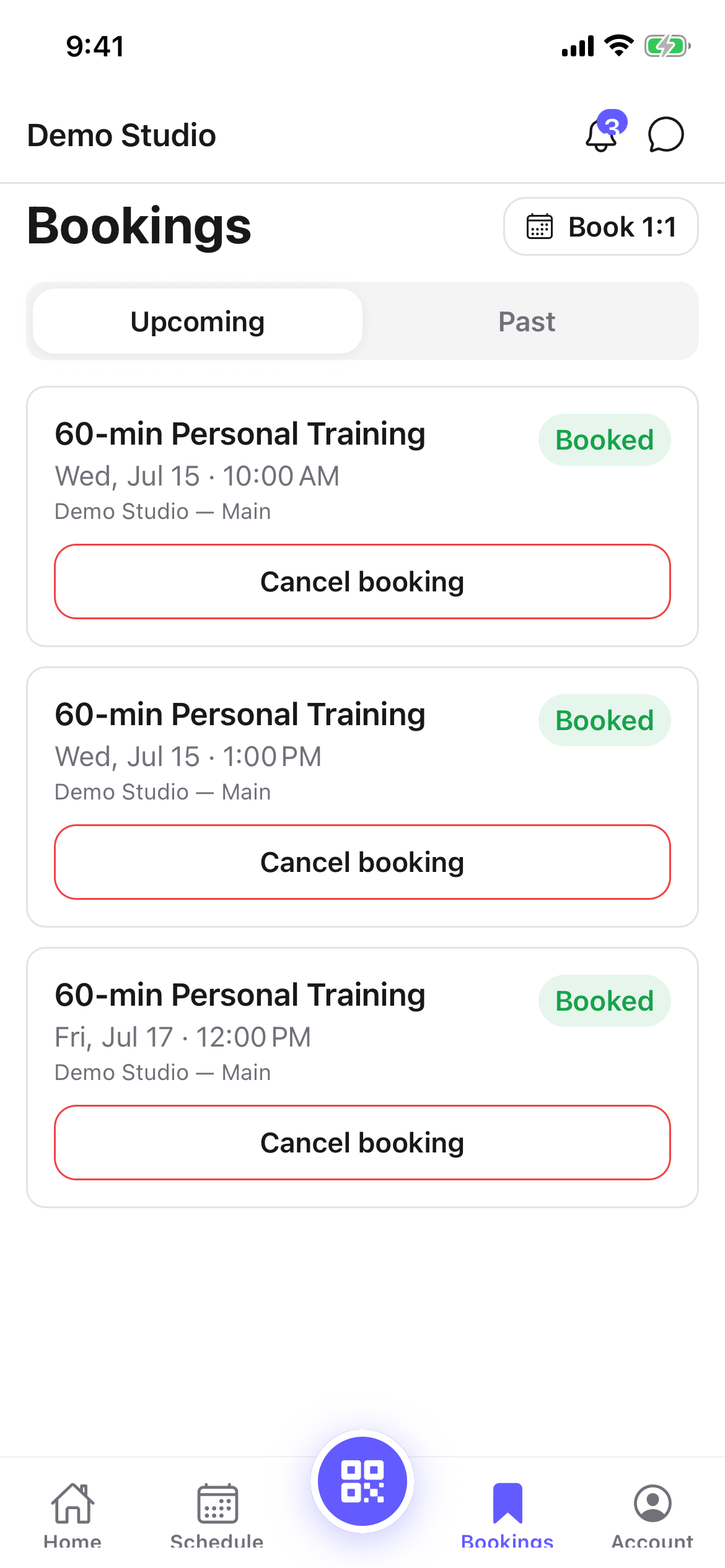
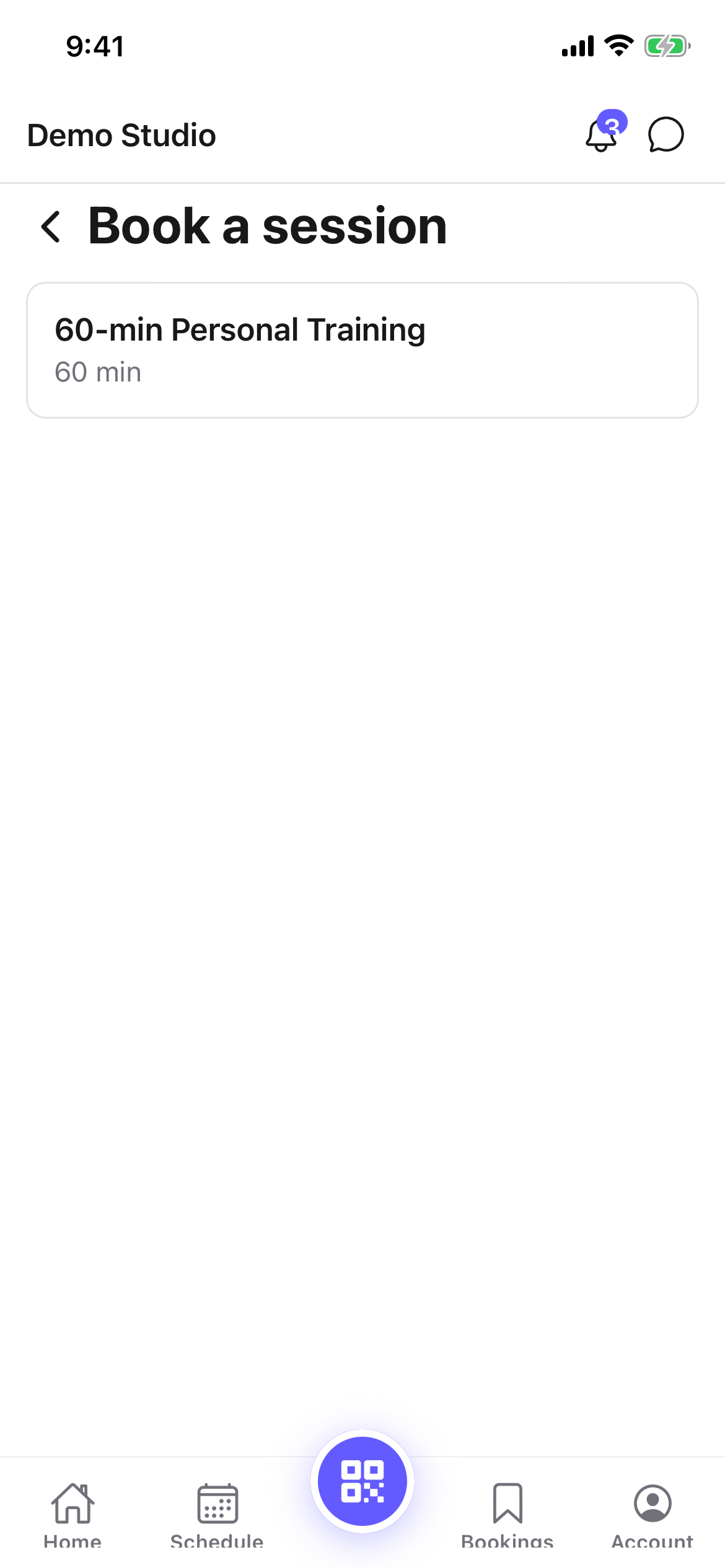
Choose the service — for example 60-min Personal Training.
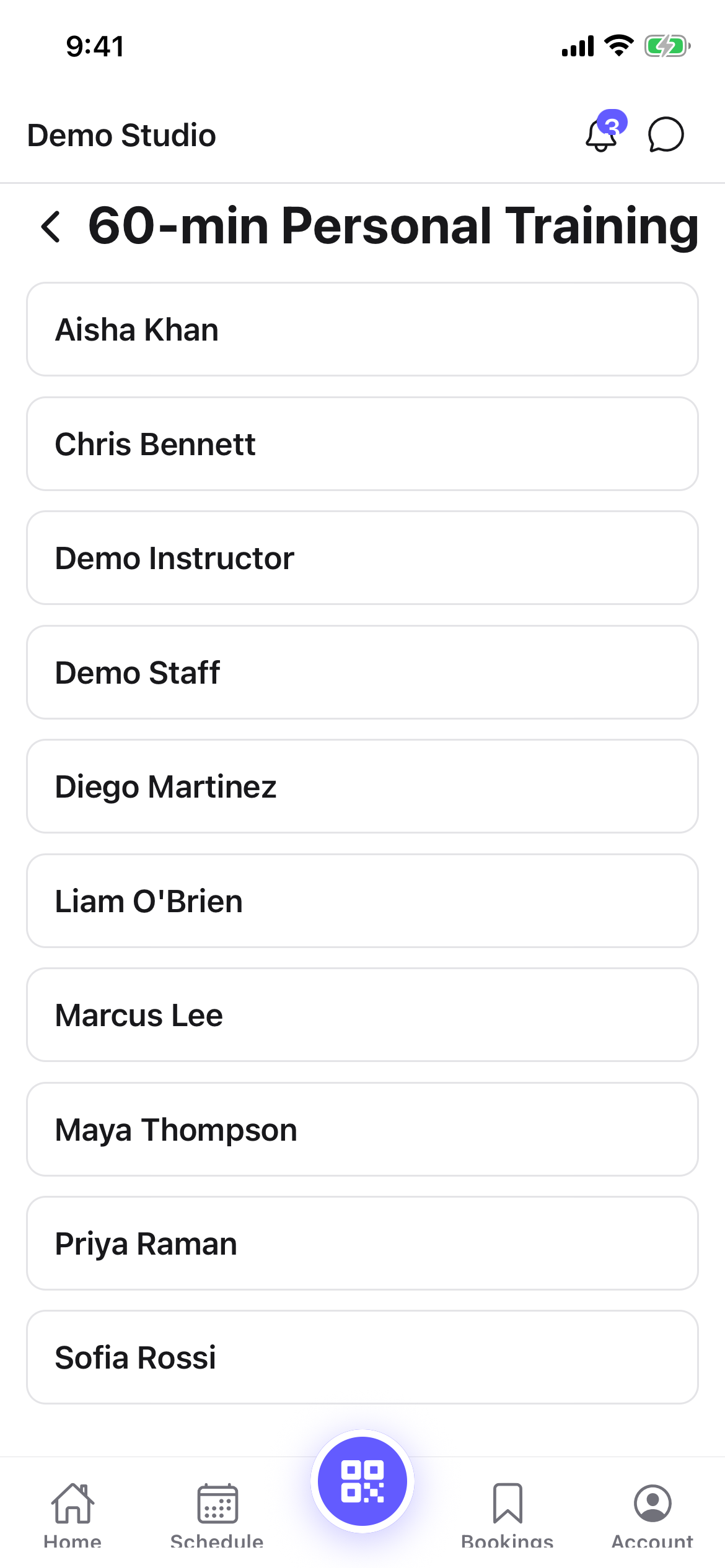
Pick a trainer from the list.
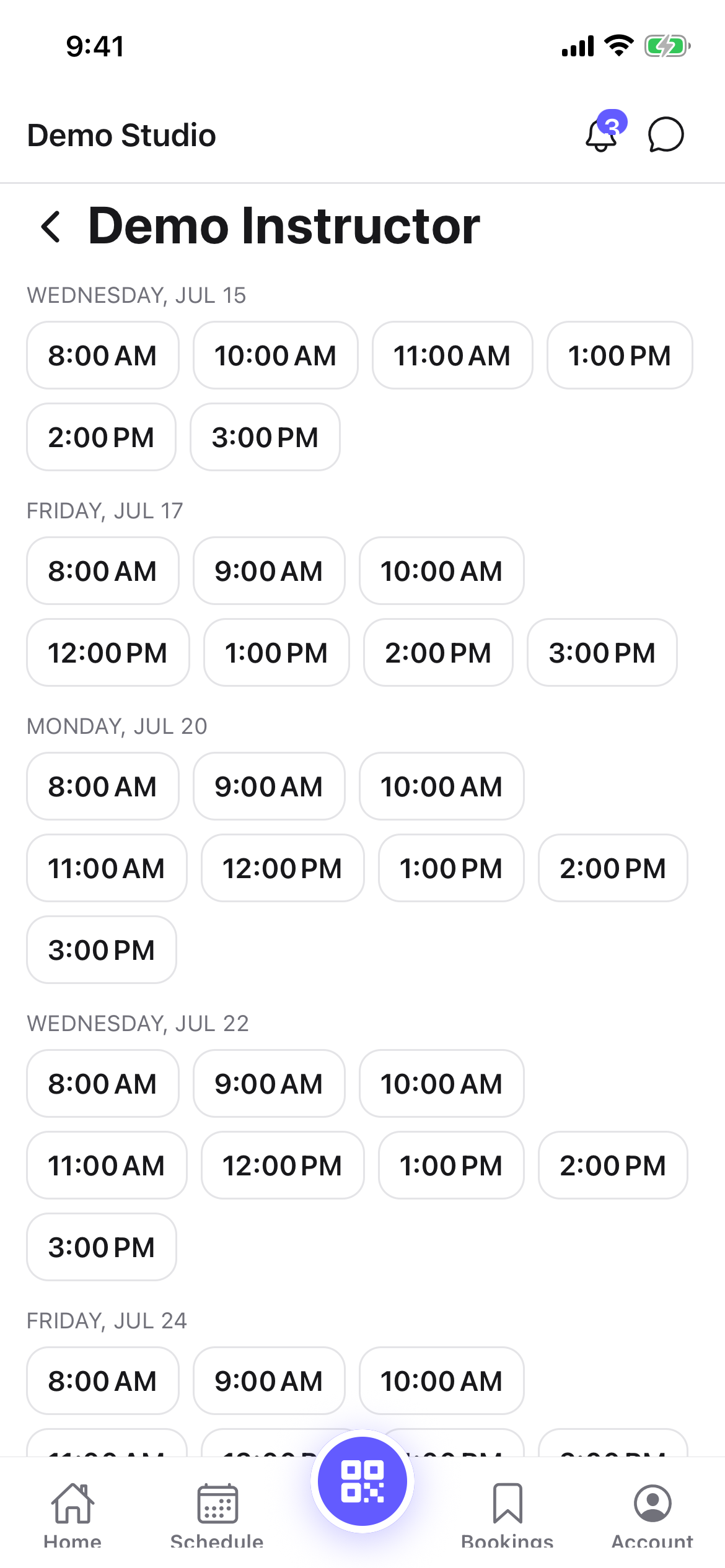
Choose an open time. Times are grouped by day for the next two weeks — tap the one you want.
That's it — you'll see Session booked, and the session appears under Bookings.
Changing or cancelling
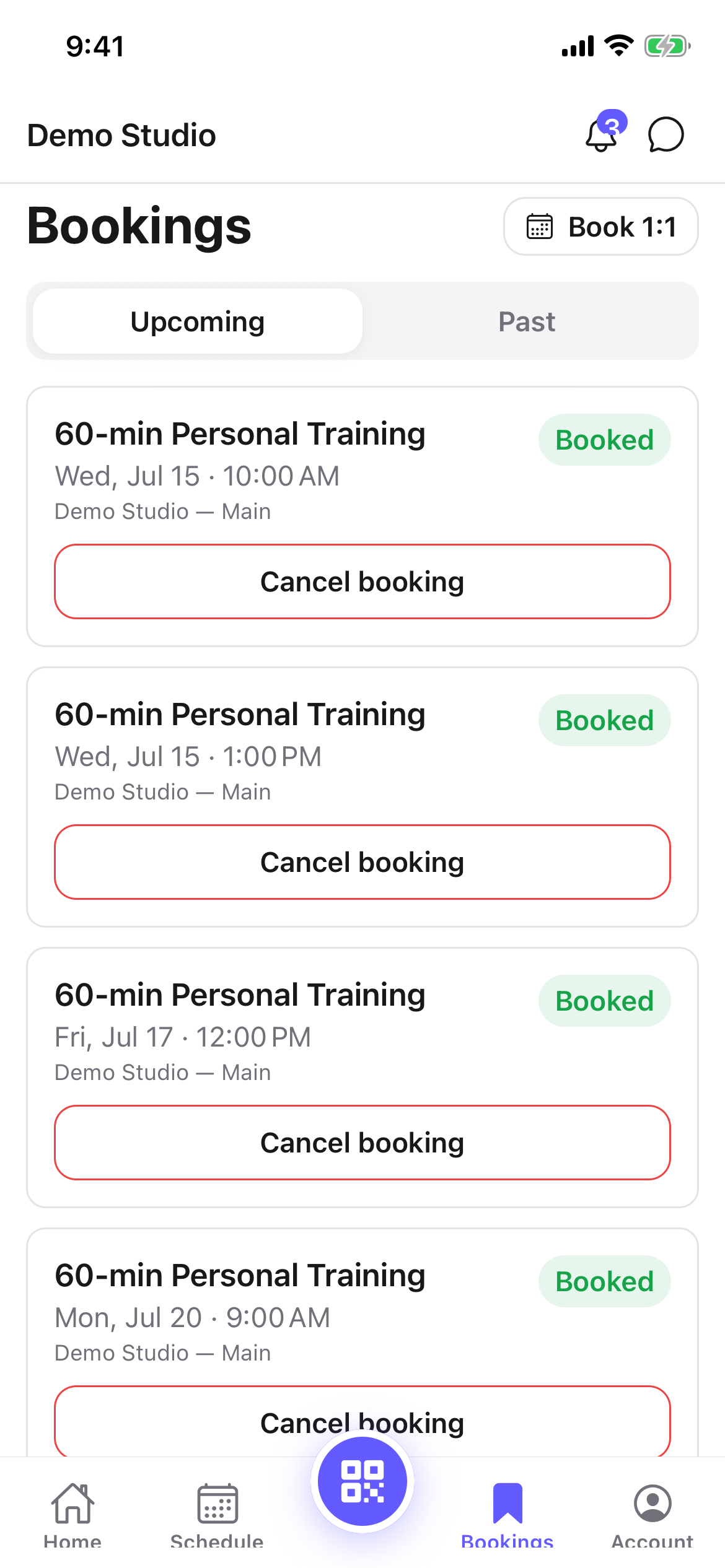
Your session shows under Bookings alongside your classes. To cancel, open it and tap Cancel booking — the time re-opens for someone else. If you need a different time, cancel and book again. Your studio may have a cancellation window, so cancel with a little notice where you can.
Tips
- No time that works? Try a different trainer — each one has their own hours.
- Only open times show. If a slot isn't listed, it's already taken or outside the trainer's hours.
- Check in as usual. When you arrive, use your check-in code just like a class — see Checking in.
Troubleshooting
| Issue | What to do |
|---|---|
| "Your membership doesn't include personal training" | Your plan doesn't have a personal-training allowance. Ask your studio to add it or sell you an add-on. |
| No trainers appear | No trainer currently offers that service at your location. Check back, or ask the front desk. |
| No open times | That trainer has no availability in the next two weeks — try another trainer. |