Taking a sale
For: Owners, Managers & Front-desk Staff
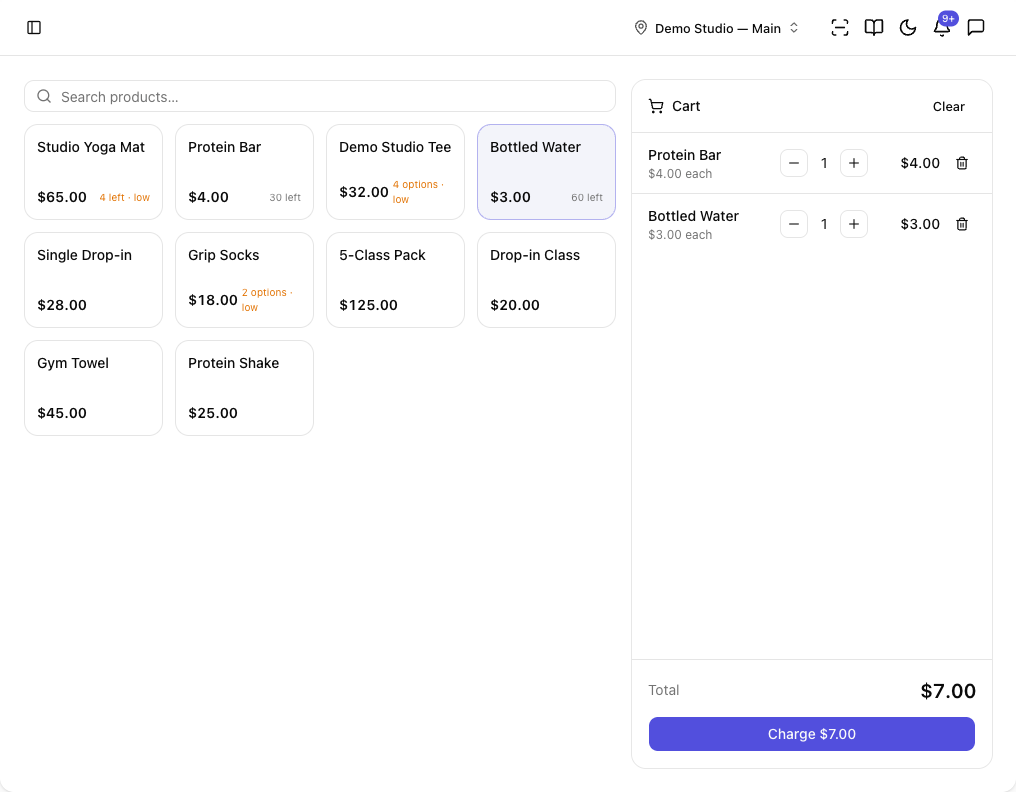
The Point of Sale is a two-pane till: products on the left, the cart on the right. This page covers building a cart, choosing how the customer pays, and taking payment — including on a card reader.
Building the cart
- Go to Commerce → Point of Sale.
- Find items with Search products… and tap a product to add it to the cart. A product with options opens Pick an option to add to the cart — choose a variant.
- In the Cart, adjust quantities with the steppers, or Clear to start over.
- When you're ready, tap Charge {total} to go to checkout.
Stock shown at the till is for the location selected in the top bar. A product shows Sold out when that location's stock runs out, {n} left as it counts down, and · low once it reaches its alert level. For a product with options, each variant shows its own count when you Pick an option.
Selling a stock item needs a location. If the top bar is set to All locations, the cart shows "Select a location from the top bar to sell — stock and takings are per location," and Charge is disabled. Pick the studio you're selling at, and checkout enables. (A studio with a single location is always ready.)
Choosing a payment method
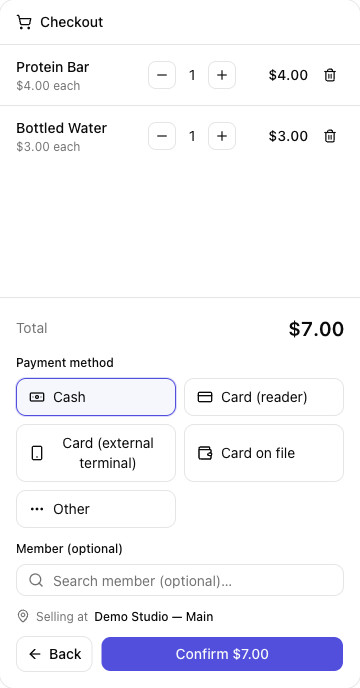
At checkout, pick a Payment method:
| Method | What it does |
|---|---|
| Cash | Recorded only — ClassLift logs the sale; you handle the cash. |
| Card (reader) | Charged by Stripe on a connected card reader (see below). |
| Card (external terminal) | Recorded only — "Run the card on your own terminal. ClassLift records the sale but does not charge it, and cannot refund it later." |
| Card on file | Charges a card the member already has saved. Requires a member. |
| Other | Recorded only, for any other tender. |
Add the buyer under Member — optional for most tenders, but required for Card on file. Search with Search member…; a sale with no member is simply unattributed.
Taking payment on a card reader
If your location has a Stripe reader, choose Card (reader):
- If you have more than one, pick the Reader (each shows online or offline).
- Tap Confirm {total}. The screen shows Waiting for the customer to tap, insert, or swipe…
- The customer presents their card on the reader. On success you'll see Sale complete and Charged {amount}.
You can Cancel payment while the reader is waiting.
Finishing up
- A charged sale (reader or card on file) shows Charged {amount}; a recorded sale (cash, external terminal, other) shows Recorded {amount}.
- Tap New sale to start the next customer.
Tips
- Use Card (external terminal) only if you run the card elsewhere — ClassLift can't refund it, so you'd refund on that device.
- Card on file is the fastest way to sell to an existing member — no card needed at the till.
Troubleshooting
| Issue | What to do |
|---|---|
| The Card (reader) option is missing | No reader is set up for this location; use another tender or add a reader in Settings. |
| Charging a card on file needs a member | Add the member under Member before charging their card on file. |
| The reader timed out waiting for a card | The customer didn't present a card in time — start the charge again. |
| The card was not charged | Try again, or use another payment method. |