Notifications and preferences
For: Members
Text messages aren't available yet. Texts are awaiting carrier approval, so the Text messages option described below isn't shown in ClassLift right now. Email, push, and in-app notifications all work as usual. If you agreed to texts when you joined, that choice is saved — you'll simply start receiving them once texts go live, and you can turn them off at any time.
Notifications keep you posted on your classes and account. This page covers your notification center and how to choose the way your studio reaches you.
Your notification center
- Mobile app: tap the bell in the top bar to open your Notifications. Unread items have a dot.
- Web portal: click the bell in the top bar to open your Notifications panel. Switch between All and Unread, and use Load more to see older ones.
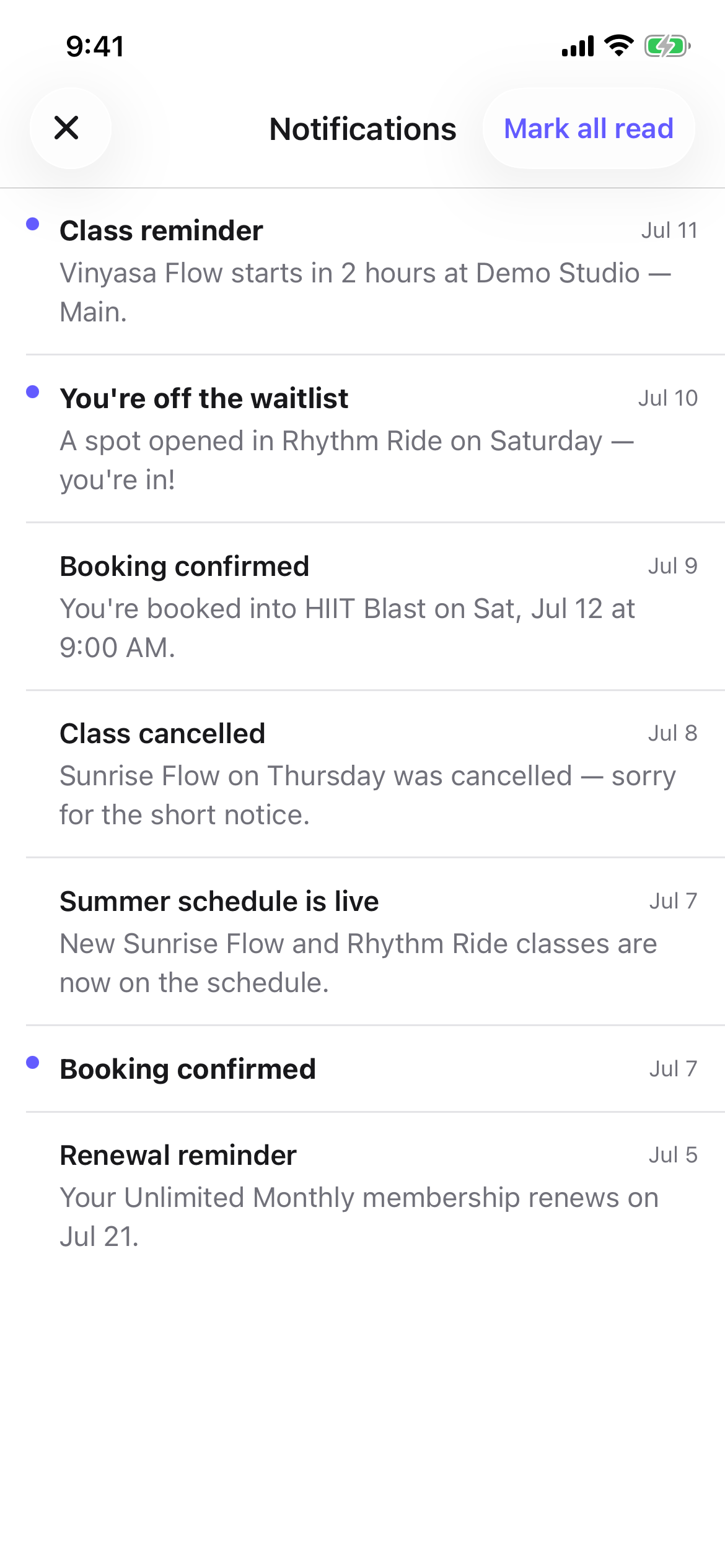
Tap a notification to mark it read. To clear everything at once, tap Mark all (web) or Mark all read (app). When there's nothing new you'll see You're all caught up.
Choosing how your studio reaches you
Open Account → Notifications to set your channels:
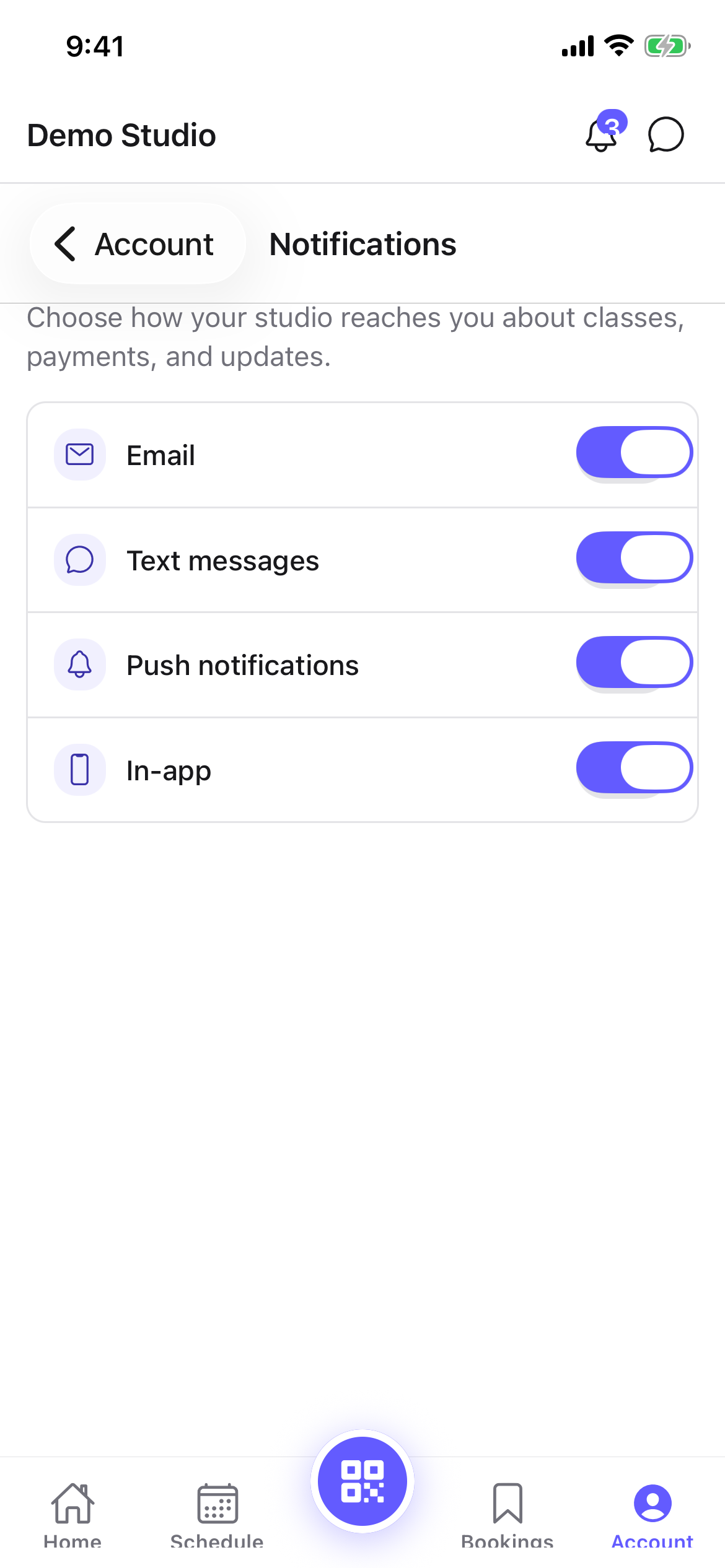
| Channel | What it's for |
|---|---|
| Receipts, reminders, and updates by email. | |
| Text messages | Time-sensitive reminders by SMS. |
| Push | Alerts in the ClassLift mobile app. |
| In-app | Notifications in your notification center. |
Flip a switch to turn a channel on or off — your choice saves on its own, there's no Save button. If your studio has turned a channel off, it shows Turned off by your studio and can't be switched on here.
Some essential messages — like billing and account alerts — are always sent. Manage which devices get push notifications from the ClassLift mobile app.
Agreeing to text messages when you join
When you join a studio and enter a phone number, you'll see an option to agree to receive text messages — booking confirmations, class reminders, waitlist openings, membership and payment notices, and the occasional announcement from your studio. Texts are sent by ClassLift on behalf of your studio. Ticking it is optional: you can join without it, and leaving it unticked simply means your studio won't text you.
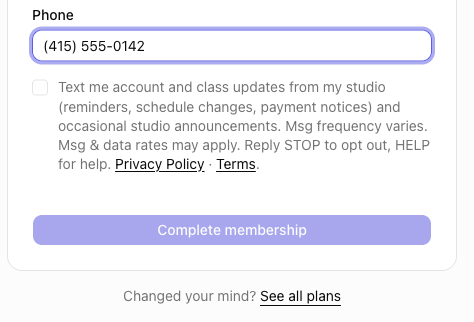
If you'd rather stop texts later, you have two ways:
- Reply STOP to any studio text to turn all texts off from that number. Reply HELP for help.
- Turn Text messages off under Account → Notifications (above).
Tips
- Keep Push on in the app so you hear right away when a waitlist spot opens or a class changes.
- Turning a channel off here won't stop essential billing and account messages — those always come through.
- Standard message and data rates may apply to text messages, depending on your mobile plan.
Troubleshooting
| Issue | What to do |
|---|---|
| A channel is greyed out as Turned off by your studio | Your studio has disabled that channel; ask them if you'd like it back on. |
| I'm not getting push notifications | Check Push is on under Account → Notifications, and that notifications are allowed for ClassLift in your phone's settings. |
| I still get some emails after turning Email off | Essential billing and account alerts are always sent. |