A member's profile
For: Owners, Managers & Front-desk Staff
Click any member in the directory to open their profile — a single view of their membership and record. Across the top are tabs: Overview, Documents, Family, Notes, Tags, and Health. This page covers all of them except Family, which has its own guide: Dependents and guardians.
Overview — the membership
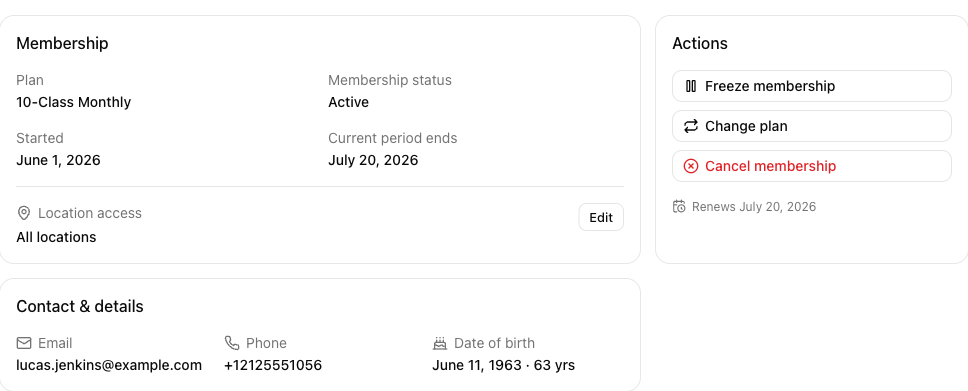
The Overview tab shows the Membership card (plan, status, start date, current period end, and Location access), an Actions card for managing it, and a Contact & details card with the member's Email, Phone, and Date of birth (with their age) — the details captured when they joined. A field reads — when it isn't on record.
Here's how to manage the membership:
| Action | What it does |
|---|---|
| Freeze membership | Pauses billing and withdraws access. You'll see Membership frozen — billing paused and access withdrawn. |
| Reactivate membership | Resumes a frozen membership's billing and access. |
| Change plan | Moves the member to a different plan; entitlements and proration apply from the change. |
| Cancel membership | Ends billing and revokes access. History is kept. |
| Edit (Location access) | Overrides the plan's default location access for this member. |
Cancelling asks you to confirm on Cancel this membership? — to pause temporarily instead, use Freeze. Once cancelled, the profile notes the history is retained for reporting.
Documents — waivers and agreements
The Documents tab lists every waiver or agreement and this member's signing status — Signed, Not signed, or out of date when there's a newer version. View opens the document as it read when this member signed it, with the version, the name they signed with, and the date — so if you've since revised the wording, you still see the copy they actually agreed to. For a dependent with a required-but-unsigned document, a guardian can Sign as guardian here (the full text is shown in that dialog before they sign).
Notes — internal only
The Notes tab is for staff. Type in the note box (Add an internal note about this member…) and click Add note. Notes stay with your team and are never shown to the member. Use a note's menu to Edit or Delete it.
Tags — group and filter
The Tags tab lets you label a member — for example vip, injured, or trial. Type a tag and click Add (lowercase letters, digits, hyphen, or underscore — no spaces). Remove a tag with the × on it. Tags help you group and filter members.
Health — member-provided
The Health tab shows health and emergency information the member provides and maintains. Staff can view it for emergency response but can't edit it here.
Exporting or erasing a member's data
Owners and managers see a data-actions menu (top-right of the profile) for privacy requests:
- Export data — gather the member's data and Download JSON.
- Erase data — permanently erase the member's data (you type their email to confirm).
- Restore a messaging channel — let a member receive email again after it was turned off. (SMS is awaiting carrier approval, so it isn't offered here yet.)
Tips
- Freeze keeps a member's history and lets them come back; Cancel ends the membership. Reach for freeze when someone's away for a while.
- Tags pair well with the directory's filters and with Automations — tag a cohort, then act on it.
Troubleshooting
| Issue | What to do |
|---|---|
| The Actions card is gone | The membership is cancelled; its history is retained but there's nothing left to change. |
| A document shows out of date | There's a newer version — because you published one, or because the document's text was edited after they signed. The member (or guardian) needs to sign the current one. |
| I can't edit a member's Health info | Only the member can edit it; staff view it for emergencies. |