Managing Your Group
For: Members
Everything you do as a group owner happens on one screen. Open Account → My team and choose your group.
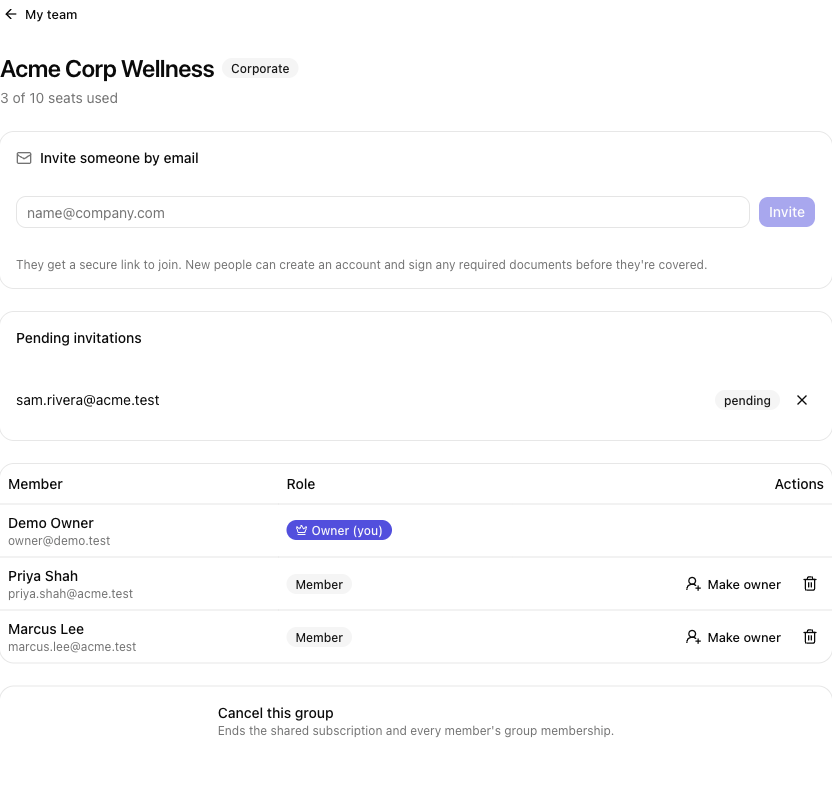
At the top you'll see your group's name, its type, and how many seats are used.
Inviting someone
- In Invite someone by email, type the person's email address.
- Select Invite.
They get a secure link to join. You'll see them under Pending invitations until they accept. New people can create an account, give their Date of birth (required) and Phone (optional), and sign any required documents from the link before they're covered.
If your group is full, an invite is turned down until a seat opens up — remove someone or ask your studio to raise your seat limit.
Inviting several people at once
To invite a whole roster, select Invite several or import a CSV.
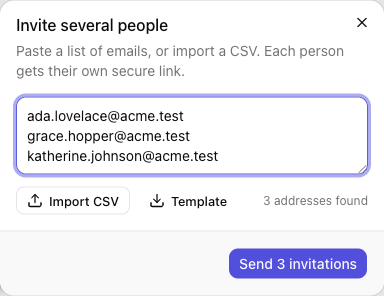
- Paste a list of email addresses (one per line, or comma-separated) — or select Import CSV to load them from a spreadsheet. The addresses can be in any column; a header row is fine.
- Not sure of the format? Select Template to download a ready-to-fill CSV.
- Check the addresses found count, then select Send invitations.
You'll get a summary of what happened, and anyone skipped is listed with a reason:
| Result | Meaning |
|---|---|
| Invited | A join link was sent. |
| Already a member | This person is already covered by the group. |
| Already invited | They have an invitation waiting — no duplicate is sent. |
| Not a valid email | The address couldn't be read. |
| No seat left | Sending would exceed your seat limit, so it was skipped. |
Duplicate addresses are removed automatically. If your list is longer than your remaining seats, the ones that fit are invited and the rest are marked No seat left — nobody gets a link they can't use.
On the mobile app, use Invite several to paste a list; CSV import is available on the web.
Adding a child (family groups)
On a family group, you can add a young child who doesn't have — or need — their own login. Look for Add a child next to the invite options. (You won't see this on a company group.)
- Select Add a child.
- Enter the child's full name and date of birth, and choose your relationship to them — Parent, Guardian, or Other.
- Tick the box confirming you're the child's parent or legal guardian and that you consent to their membership and to signing the studio's required documents on their behalf.
- Select Add child. They're added to your family and covered under your group.
This consent step is required so the studio has a record that a parent or guardian approved the child's membership and signed for them — children can't sign for themselves. Afterwards the child appears under Family, where you can book and check them in. On a flat family plan, adding a child doesn't change what you pay.
Cancelling a pending invitation
Under Pending invitations, select the ✕ next to an address to cancel it. The link stops working right away. Invitations also expire on their own after two weeks — just send a new one.
Removing a member
In the member list, select the trash icon next to a person, then Confirm. Their spot in the group ends and the seat is freed. (You can't remove yourself while you own the group — hand it over first, or cancel the group.)
Handing the group over to someone else
To make another member the owner — for example, when a new office manager takes over — select Make owner next to their name, then Confirm. They become the payer, and you go back to being an ordinary member. This moves who gets billed, so you're asked to confirm.
Cancelling the group
Under Cancel this group, select Cancel group, then Confirm. This ends the shared membership and every member's coverage under it. It can't be undone.
Action reference
| Action | What it does |
|---|---|
| Invite | Emails a join link; the person appears under Pending invitations. |
| Invite several / Import CSV | Invites a whole list at once; duplicates and people already covered are skipped, and overflow past your seat limit is turned down up front. |
| Add a child (family groups) | Adds a young child with no login of their own, after you confirm consent. |
| ✕ (on a pending invite) | Cancels the invitation; the link stops working. |
| Trash icon (on a member) | Removes the member and frees their seat. |
| Make owner | Hands the group — and the bill — to another member. |
| Cancel group | Ends the whole group and everyone's coverage under it. |
Tips
- Invite work emails. For a company group, invite people at their work address so it's easy to see who's covered.
- Watch your seat count. The count at the top (for example, 3 of 10 seats used) tells you how much room you have before you hit your limit.
- Removing someone doesn't delete their account. They keep their ClassLift account — they're just no longer covered by your group.
Troubleshooting
| Issue | What to do |
|---|---|
| Your invite was turned down as full | You're at your seat limit. Remove someone, or ask your studio to raise the limit. |
| Someone says their link doesn't work | It may have been cancelled or expired (links last two weeks). Send a fresh invite. |
| You don't see My team | You only see it if you own a group. If you expected to, ask your studio to check your setup. |