The dashboard
For: Owners & Managers, Front-desk Staff & Instructors
The Dashboard is the home screen everyone on staff lands on after signing in — and it's tailored to your role. Owners and managers see the studio's headline numbers; front-desk staff see everything happening today; instructors see their own classes.
What you see depends on your role
| Your role | Your dashboard |
|---|---|
| Owner / Manager | Studio-at-a-glance KPIs and trends over a chosen period. |
| Front-desk Staff | A command center for today — the day's classes, quick actions, and check-in progress. |
| Instructor | Your own classes — today's sessions, the rest of the week, and your teaching stats. |
Owners & Managers — studio at a glance
The headline numbers and trends over the last week, month, or quarter.
Setting the period
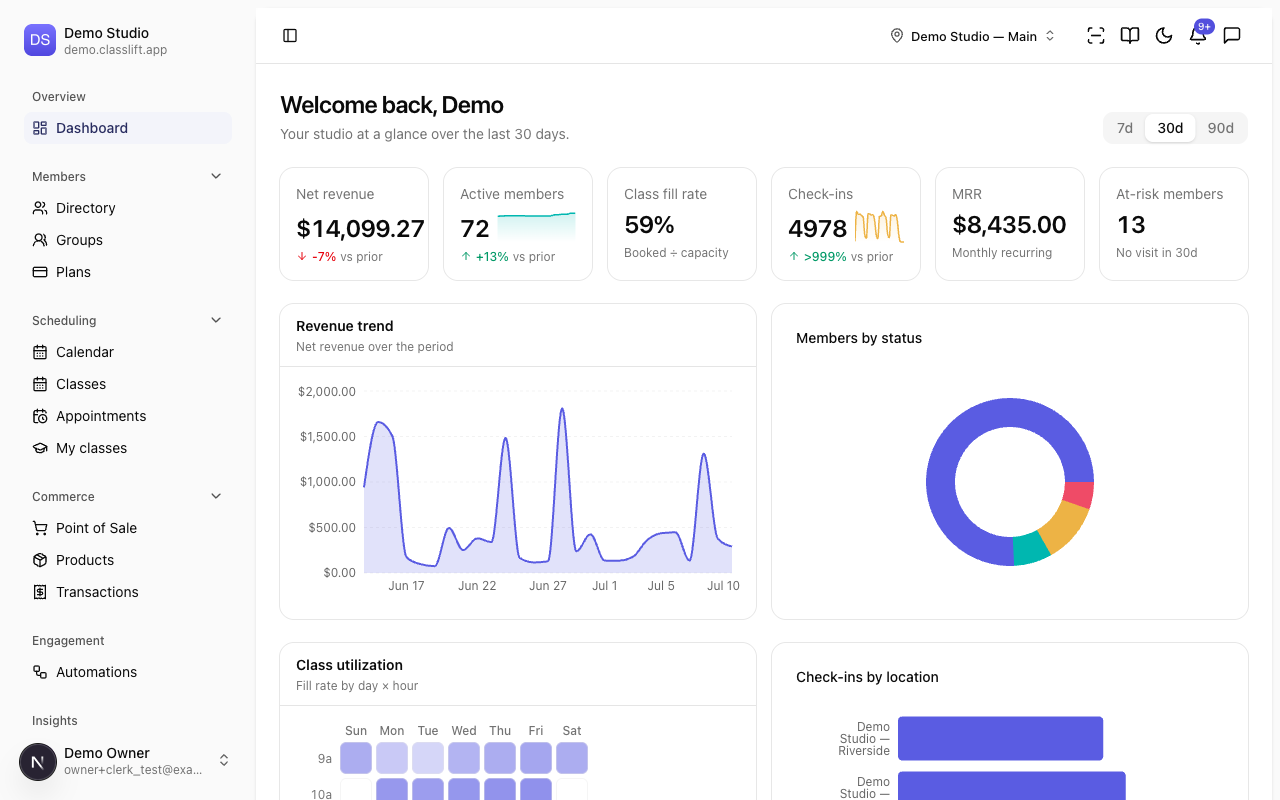
At the top right, switch between 7d, 30d, and 90d to change the window for every number and chart (the default is 30 days). The subtitle reads Your studio at a glance over the last 30 days.
The headline numbers
| Card | What it shows |
|---|---|
| Net revenue | Revenue over the period, with a trend line and change vs the prior period. |
| Active members | How many members are active, with the trend. |
| Class fill rate | Booked ÷ capacity. |
| Check-ins | Total arrivals, with the trend. |
| MRR | Monthly recurring revenue. |
| At-risk members | Active members with no visit in 30 days (fewer is better). |
Each card shows a small change indicator against the prior period (for example +9% vs prior).
The charts
- Revenue trend — net revenue over the period.
- Members by status — the mix of active, past-due, frozen, and cancelled memberships.
- Class utilization — fill rate by day × hour, as a heatmap.
- Check-ins by location — arrivals across your locations.
Tips
- Use 90d to see a trend and 7d for a quick pulse of the last week.
- Want the detail behind a number? Open Reports — see Reports.
Front-desk Staff — today at the studio
Your dashboard is built for the desk: what's happening right now, and the actions you reach for most.
Quick actions
Along the top:
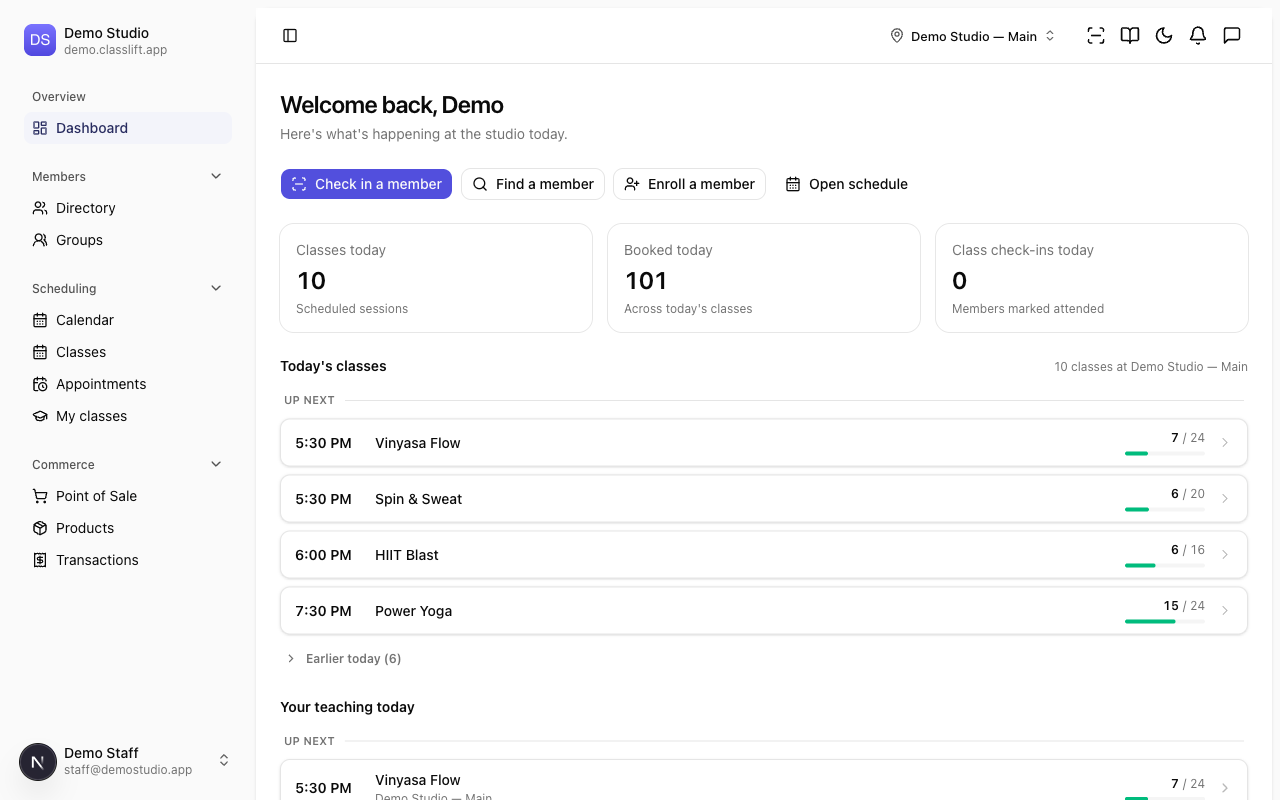
- Check in a member — opens the check-in panel to scan a member's QR code or search by name. See Check-in.
- Find a member — jump to the member Directory to look someone up.
- Enroll a member — go to the directory to start a new sign-up.
- Open schedule — the full Calendar.
Today at a glance
Three counts summarize the day: Classes today, Booked today, and Class check-ins today (members marked attended).
Today's classes
Today's sessions as a running agenda, in time order and split into three bands so the present leads:
- Happening now — any class in session right now, each showing its check-in progress (✓ attended / booked in) and a Check in button that opens that class's roster, where you check its booked members in.
- Up next — the classes still to come today, each showing its booking / capacity (for example 11 / 24).
- Earlier today — classes that have already finished, folded away under a count you can expand.
Each row shows the start time, the class name, and a fill bar that runs green, amber, then red as the class fills up. A full class with a waitlist shows a +3 waitlist chip.
The list follows the location selected in the top bar — switch locations there to see another site, or choose All locations to see every class at once (each row then names its own location). Select any class to open its roster on the schedule, where you can see who's booked, check members in, and mark attendance.
Tip: To check a member in with their QR code instead, use Check in a member at the top of the dashboard — it works for any class the member has booked.
If you also teach, a Your teaching today strip lists your own classes for the day in the same agenda form.
Instructors — my classes
Your dashboard is your own teaching, at a glance — no studio-wide numbers.
Your teaching stats
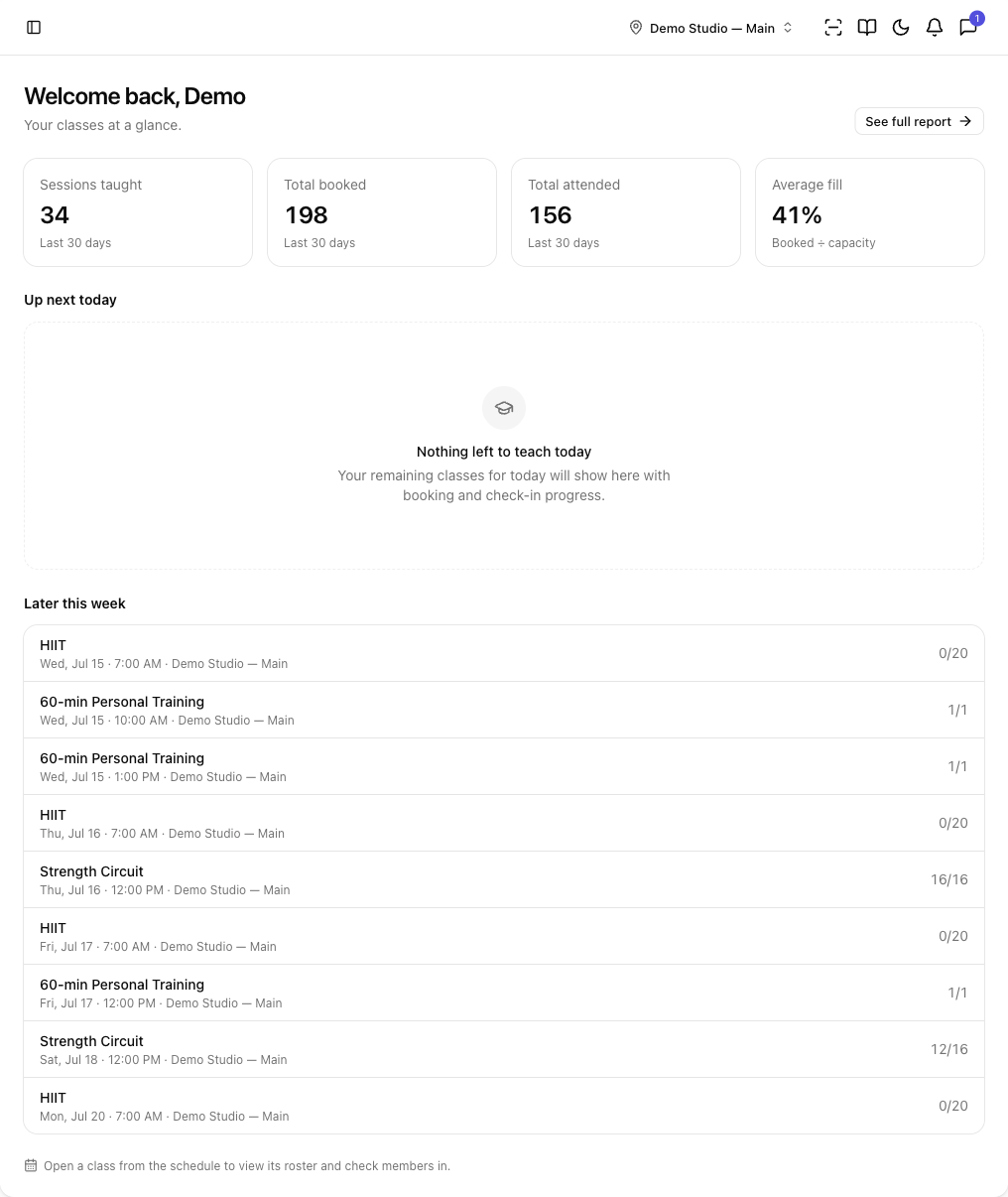
Four tiles cover the last 30 days: Sessions taught, Total booked, Total attended, and Average fill. For the full breakdown, use See full report (top right) or open My classes.
Up next today
The classes you still have to teach today, as cards with booking and check-in progress. When you're done for the day, this reads Nothing left to teach today.
Later this week
A short list of your upcoming classes for the rest of the week, each with its booking count.
Open any class from the schedule to view its roster and check members in.
Troubleshooting
| Issue | What to do |
|---|---|
| A chart says No revenue in this period (or similar) | There's no data in the selected window — widen the period or check back once you have activity. |
| The numbers look off after a busy launch | The change indicator compares to the prior period, so a jump from a quiet period can look dramatic — check the underlying Reports for context. |
| A section says Couldn't load | That part of the dashboard couldn't reach the server — refresh the page to try again; the rest of the dashboard still works. |