Documents
For: Owners & Managers
Documents are the waivers, policies, and forms your members sign. Required documents gate participation until they're signed. Go to Compliance & Data → Documents.
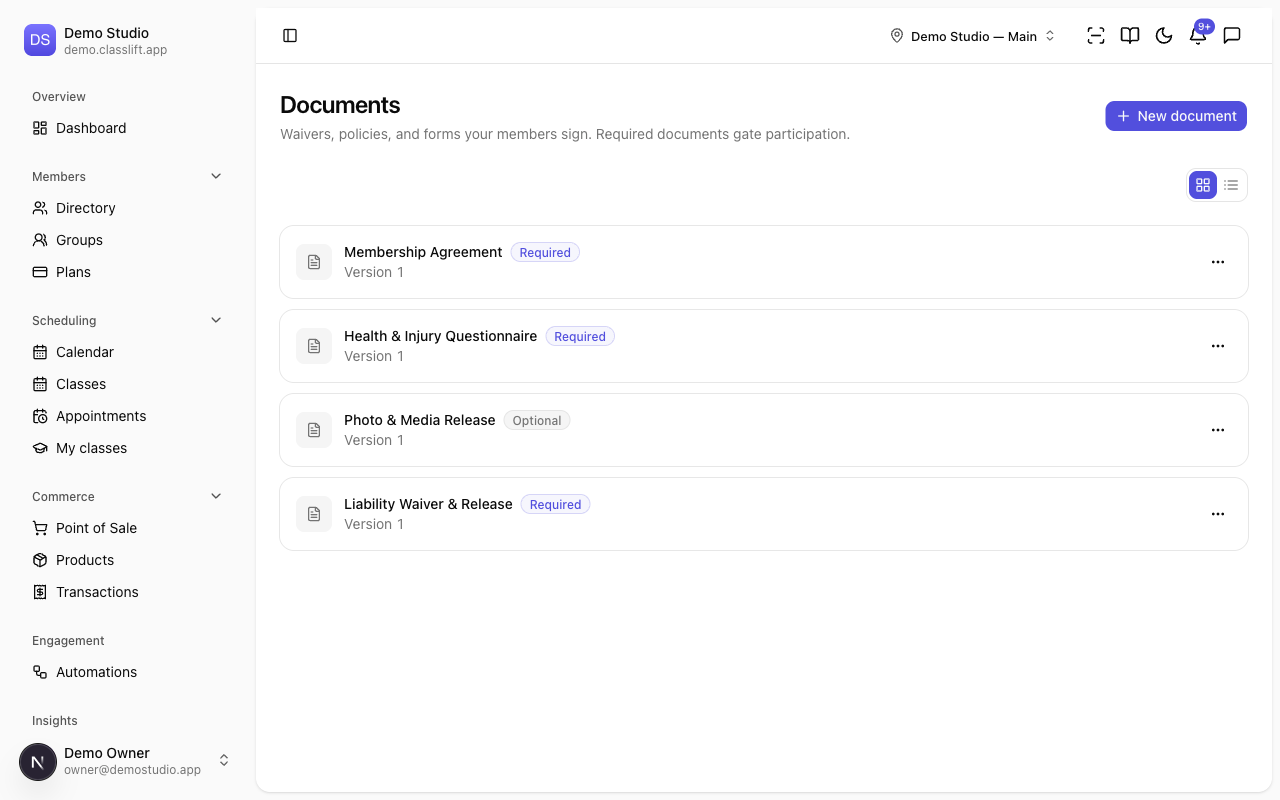
Use the toggle at the top right to switch between a card view and a compact list view — the list view shows each document's requirement and version in one scannable table.
Creating a document
- Click New document.
- Enter a Title (e.g. Liability Waiver) and the Document text — the full text members read and sign.
- Leave Required on if members must sign it to participate (turn it off for optional documents).
- Click Create document.
You edit a document later with its ⋯ menu → Edit — changing the title, text, or whether it's required.
The Document text is what members actually read: it's shown in full when they sign, on the join page, in their account, and in the mobile app. Put the complete wording here, not a summary or a pointer to a paper copy.
Editing the text of a document people have already signed
Once anyone has signed a document, editing its Document text automatically moves it to the next Version — and every member who signed the old wording must re-sign. This is deliberate: the people who already signed agreed to the old text, and their signatures stay attached to that wording, not to your edit.
| What you change | Effect |
|---|---|
| Document text, before anyone has signed | Saved in place. The version doesn't change — nobody has agreed to anything yet. |
| Document text, after someone has signed | Version goes up. Prior signers show as needing to re-sign, and are notified. |
| Title, Required, or archiving it | Saved in place. The version doesn't change. |
If you only want to correct a typo, be aware there's no way to change signed wording without asking people to re-sign — that's what keeps each signature matched to the text it was given for.
Publishing a new version
Use the ⋯ menu → Publish new version when you want members to re-sign without changing the wording — an annual re-acknowledgement, for example. The document moves to the next version, and every member must re-sign before participating again.
Each document shows its current Version, and a Required or Optional badge.
Retiring a document
Use the ⋯ menu → Archive to retire a document you no longer use (it shows an Archived badge). Restore brings it back.
Seeing who has signed, and exactly what they signed
This screen manages the documents themselves. To see whether a particular member has signed, open their profile's Documents tab — see A member's profile. Members sign from their own account.
On that tab, View next to a signed document opens the wording as it stood when that member signed it, along with the version, the name they signed with, and the date. If you've since revised the text, this still shows the older wording they agreed to — which is the copy that matters if a signature is ever questioned.
Tips
- Keep waivers as Required so a member can't book or check in until they've signed.
- Paste the complete text — members read it in the app before signing, so anything you leave out is text nobody agreed to.
- Get the wording right before you publish. After the first signature, every text change costs your members a re-sign.
Troubleshooting
| Issue | What to do |
|---|---|
| Everyone was asked to re-sign after I fixed a typo | Any change to the Document text of a signed document moves it to a new version. There's no silent edit — signatures stay tied to the wording they were given for. |
| I want members to re-sign, but the wording is fine | Use ⋯ → Publish new version. |
| I want to attach a PDF | Documents are entered as text here; paste the full text into Document text. |
| A retired document still shows | Archived documents remain for history; they're just no longer active. |