Insights
For: Owners & Managers
Insights turn your numbers into plain-English callouts — what's worth your attention right now — each with a recommended action and a shortcut to act. They live on the first tab of Reports.
Reading your insights
Go to Insights → Reports and open the Insights tab. Each insight is a card with:
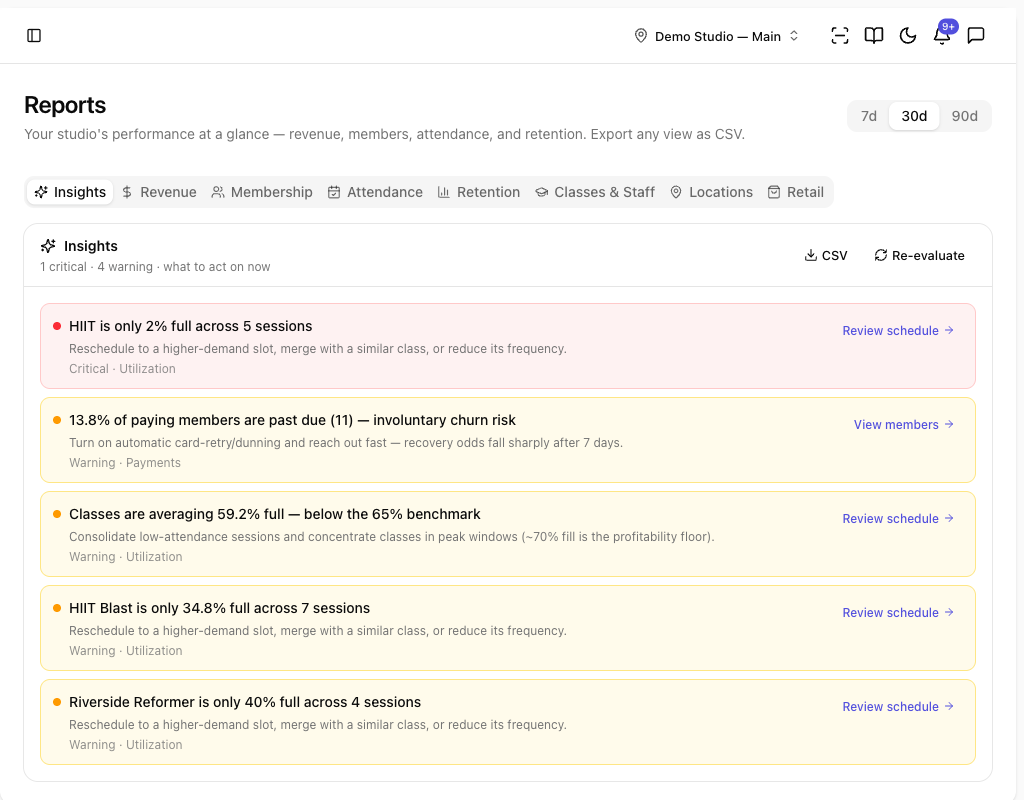
- A title describing what's happening (for example, Churn is 9% — above the 4.5% industry benchmark).
- A recommended action — what to do about it.
- A severity — critical, warning, or info — shown with a colour.
The summary line at the top counts them up ({n} critical · {n} warning · {n} info). When all's well you'll see Everything looks healthy — no insights right now.
Acting on an insight
Each card gives you up to two shortcuts:
- The action link jumps you straight to the screen where you'd act — for example, the Retention tab to work an at-risk list.
- Automate (the ⚡ button) turns the insight into an automation so the follow-up happens on its own. ClassLift opens a draft automation from a matching template — review it, then activate. If you already have that automation, it opens the existing one instead.
There's no dismiss button — the list is a live snapshot. Click Re-evaluate to re-run it (you'll see Insights refreshed.), and a card disappears on its own once the underlying issue clears.
Tips
- Start with critical insights, then work down to warnings.
- Use Automate for recurring issues (no-shows, at-risk members) so you're not chasing them by hand — see Automations.
Troubleshooting
| Issue | What to do |
|---|---|
| An insight I fixed is still showing | Click Re-evaluate to refresh — cleared insights drop off on the next evaluation. |
| Automate opened an existing automation | You already have one for that insight; review or adjust it rather than creating a duplicate. |
| No insights at all | Everything looks healthy — nothing needs attention in the current data. |