Creating a plan
For: Owners & Managers
A plan defines what members pay and what they get. This page walks through every field, plus how to edit and retire plans.
Creating a plan
Go to Members → Plans and click Create plan.
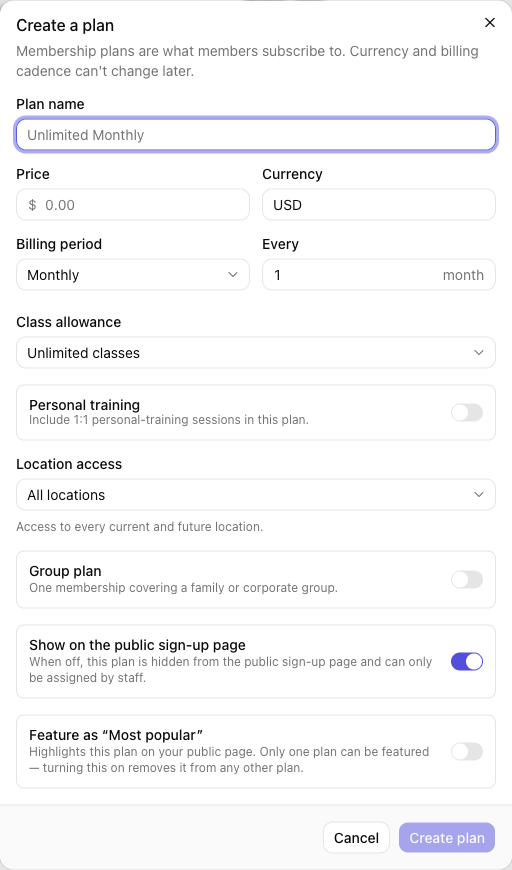
Fill in the plan:
Field What it's for Plan name What members see, e.g. Unlimited Monthly. Price The amount charged each billing period. A $0 price works for drop-ins or trials. Currency The plan's currency. It can't change later. Billing period Weekly, Monthly, or Yearly. Can't change after creation. Every Bill every n periods — e.g. Every 3 with Monthly is quarterly. Class allowance Unlimited classes, or Limited classes per period with a Classes per period number. Location access All locations, Only specific locations, or All except selected locations. Group plan Turn on for one membership that covers a family or corporate group. This reveals How it's billed and a member limit — see Group plans: how they're billed below and Groups. Show on the public sign-up page On by default. Turn it off to hide the plan from your public sign-up page so only staff can assign it — handy for comp rates or staff-only plans. Feature as "Most popular" Off by default. Turn it on to highlight this plan on your public page — see Featuring your best plan below. Click Create plan. You'll see Plan created.
Featuring your best plan
Most studios want prospects to land on one particular plan — the one that's the best value for the member and the best fit for the studio. Turning on Feature as "Most popular" marks that plan on your public sign-up page: it gets a Most popular label, a highlighted border, and a filled Join now button, so it stands out from the plans around it.
- Open the plan's ⋯ menu → Edit (or create a new plan).
- Turn on Feature as "Most popular".
- Click Save changes.
Your featured plan shows a Most popular badge in the plan list, so you can always see at a glance which one it is.
Only one plan can be featured at a time. Featuring a second plan simply moves the badge — the plan that had it is un-featured automatically, so you never need to turn the old one off first. To have no featured plan at all, just turn the switch off; your public page then shows every plan with equal weight.
A few things worth knowing:
| Situation | What happens |
|---|---|
| The plan is hidden from the public sign-up page | It can't be featured — the switch is turned off and locked. The badge only exists to steer people browsing your public page, so it has nothing to do on a hidden plan. Turn Show on the public sign-up page on first. |
| You hide a plan that's currently featured | The Most popular badge is removed automatically. |
| You retire a plan that's currently featured | The badge is removed automatically — a retired plan is gone from your public page, so it can't be the one you're recommending. |
| A per seat (corporate) group plan | Can't be featured, because these plans are always set up by your studio and never appear on the public sign-up page. |
Note: Most popular is a label you choose — ClassLift never picks it for you or works it out from how many members are on each plan. If no plan is featured, no plan is highlighted.
Group plans: how they're billed
When you turn on Group plan, choose How it's billed:
| Choice | How it charges | Best for |
|---|---|---|
| Flat rate (family) | One monthly rate for the whole group, up to the Member limit you set. Adding or removing members doesn't change the price. | Families — one household on a single discounted rate. |
| Per seat (corporate) | One subscription charged per active member. Adding or removing a member changes the bill. Set an optional Max seats cap. | Corporate wellness — a company that pays for each employee it covers. |
Visibility depends on the model. A flat (family) plan can be shown on your public sign-up page, so families can start a membership themselves. A per-seat (corporate) plan is always set up by your studio — its Show on the public sign-up page switch is turned off and locked, so a solo member can never pick a discounted corporate rate at sign-up. See Groups for how each type is provisioned.
Editing a plan
Use a plan's ⋯ menu → Edit. You can update the price, class allowance, and location access at any time — existing members keep their current price. Currency and billing cadence can't change after creation.
Raising prices for existing members
Editing a plan's price sets the rate for new signups only — everyone already on the plan stays on the price they enrolled at. To actually raise the price for current members, you move each member onto a higher-priced plan. This is done one member at a time; there's no single action that re-prices everyone on a plan at once.
- Create the new plan at the higher price (see Creating a plan above). You can retire the old plan afterward so no one new joins it — current members are unaffected by retiring (see Retiring a plan).
- Go to Members, open a member's profile, and on the Overview tab click Change plan.
- Choose the new plan and click Change plan. Billing switches to the new rate immediately, with a prorated charge or credit for the rest of the current billing period.
- Repeat for each member you want on the new rate.
Note: Change plan requires a different plan than the member's current one, so editing a plan's price and re-selecting the same plan won't work — create the higher-priced plan first, then move members to it.
Retiring a plan
When you stop offering a plan, open its ⋯ menu → Retire and confirm on Retire this plan? The plan is hidden from new signups, but members currently on it keep their membership and price — nothing changes for them. Retired plans show a Retired badge; filter the list by Active or Retired at the top.
Tips
- Set up a $0 plan for trials or drop-ins so you can still invite people and track them.
- Feature the plan you most want to sell — see Featuring your best plan. Prospects gravitate to the highlighted option, so pick the one that's genuinely the best value rather than simply the most expensive.
- To raise prices without affecting current members, edit the plan's price — only new signups pay the new rate.
- To raise prices for current members too, move them to a higher-priced plan — see Raising prices for existing members.
Troubleshooting
| Issue | What to do |
|---|---|
| I can't change the currency or billing period | These are fixed after creation. Create a new plan and retire the old one. |
| Only specific locations shows no locations | Add a location first under Settings → Locations. |
| Feature as "Most popular" is greyed out | The plan is hidden from your public sign-up page. Turn on Show on the public sign-up page first. Per-seat (corporate) group plans can never be featured. |
| The Most popular badge moved to a different plan | Featuring a plan un-features the previous one — only one plan can be featured at a time. |
| No plan shows Most popular on my public page | No plan is featured yet. Edit the plan you want to highlight and turn on Feature as "Most popular". |
| A retired plan disappeared from the list | Switch the top filter from Active to Retired (or All plans). |