Managing your billing
For: Members
Everything about what you pay lives on one screen. Open Account → Membership & billing to see your plan, your saved card, and your invoices.
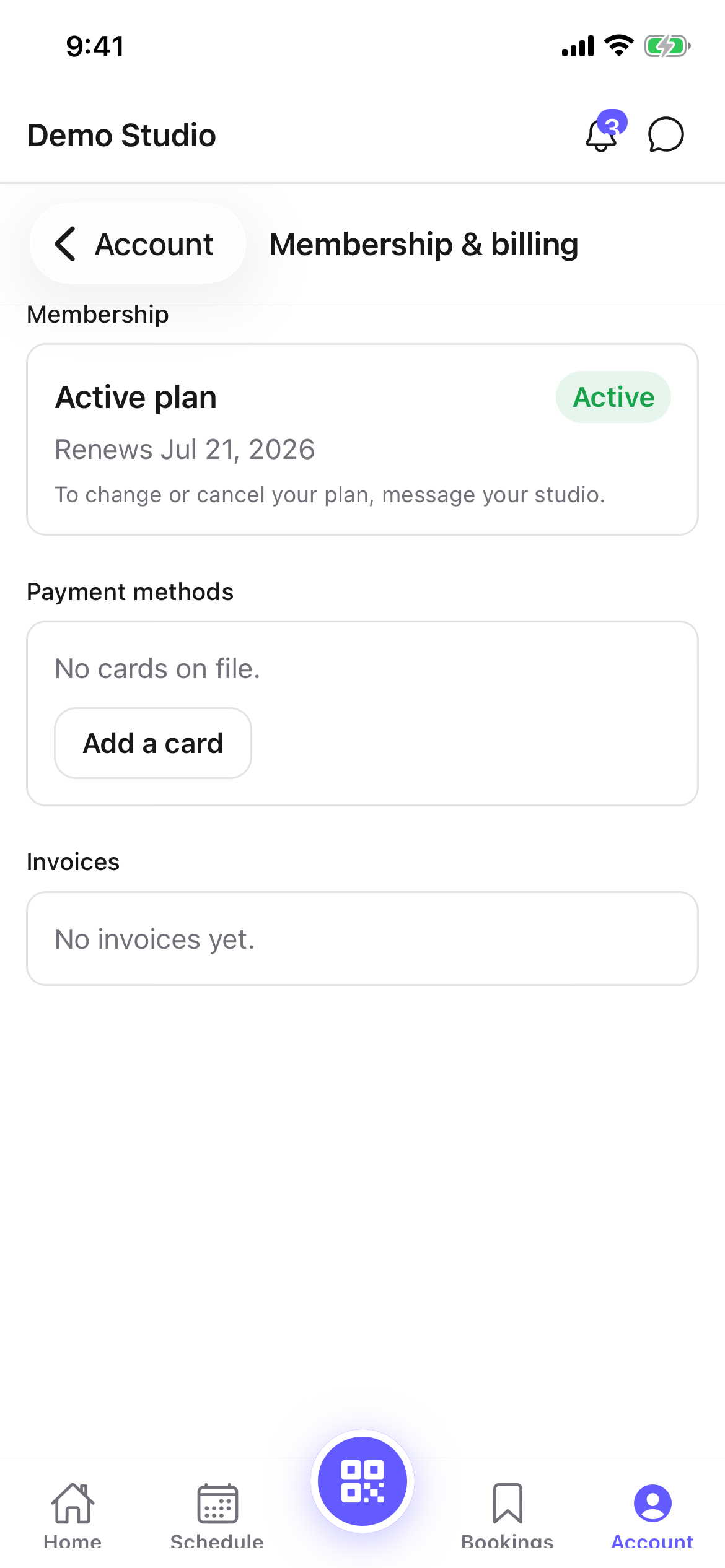
Your membership
The Membership section shows your status — active, past due, frozen, or cancelled — and when your plan renews (for example, Renews Jul 30, 2026).
To change, pause, or cancel your plan, message your studio (use the chat in the top bar). Plan changes are handled by your studio, not from this screen.
If you own a group (a family or company membership), the card on this screen is what the whole group is billed to. What you pay depends on the group's plan: a family plan is one flat rate up to your seat limit, while a company (per-seat) plan is billed for each active member. Manage the group itself — members, seats, and who pays — under Account → My team. See My team.
Your payment method
The Payment methods section shows the card on file — for example Visa ···· 4242, Expires 4/2027 — with a Default badge on your primary card.
To add a card:
- Tap or click Add card. In the web portal this opens Add a payment method; in the app a secure card sheet slides up.
- Enter your card details (your card is stored securely by Stripe — ClassLift never sees the number).
- Save the card. You'll see Card added, and it appears in Payment methods.
Once you have a card on file, Add card stays available at the top of the Payment methods section if you want to add another. You can also Make default or Remove a saved card.
Your invoices
The Invoices section lists your charges, each with its amount, date, and status (paid, open, or past due).
- If an invoice is open or past due, use Pay (the app says Settle now) to settle it.
- On the web portal, View invoice opens a full receipt you can print or save.
If your membership is past due
A failed payment shows your membership as past due and the invoice as open. Use Pay / Settle now on that invoice to bring your membership back into good standing. If you moved over from your studio's previous system, you may be asked to Re-authorize your membership on your home screen — your studio can help you finish this.
Tips
- Keep a valid card on file so your membership doesn't lapse — a failed charge marks you past due.
- You can add or update your card from either the app or the web portal.
Troubleshooting
| Issue | What to do |
|---|---|
| No payment methods | Tap or click Add card to keep your membership active. |
| Card entry isn't available for your studio yet | Card capture isn't enabled for your studio yet — ask the front desk to take your card. |
| An invoice is past due | Use Pay / Settle now on it; if it keeps failing, update your card or contact your studio. |
| I want to change my plan | Message your studio — plan changes aren't made from this screen. |