Messaging your studio
For: Members
Message your studio directly — ask a question, sort out a booking, or reply to something they sent you. You can message the studio's team; you can't message other members.
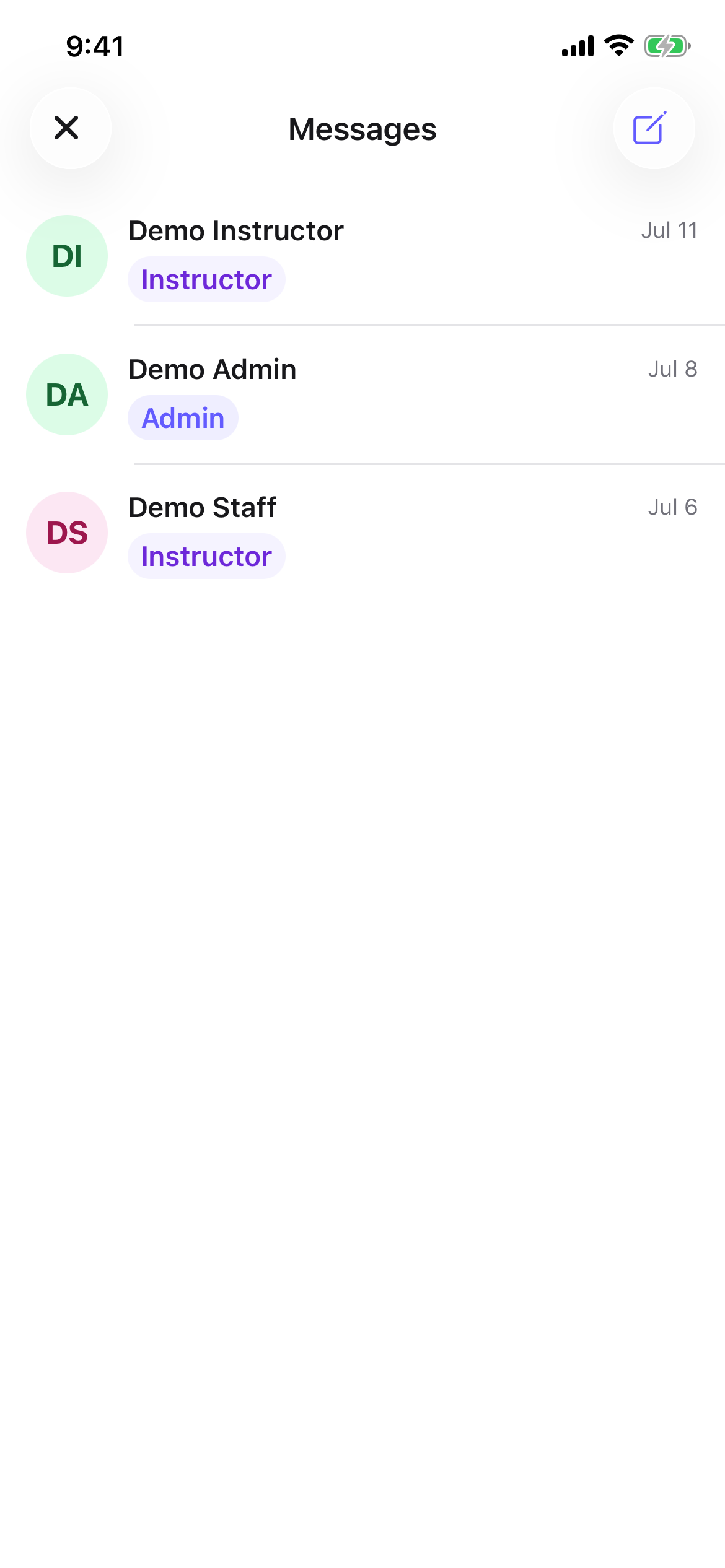
Opening Messages
- Mobile app: tap the chat icon in the top bar (on any screen), or open Messages from the Account tab.
- Web portal: click the chat icon in the top bar. Messages opens as a panel on the right.
Starting a conversation
- In Messages, tap New (web) or the New message button (app).
- Under To, search for a member of the studio's team (Search people…) and pick them. Add more than one person to start a group, and give it an optional Group name.
- Write your note under Message (Write your message…) and tap Send message.
On the web you'll see Message sent., and your conversation appears in the list. If you don't have any conversations yet, you'll see No conversations (web) or No messages yet — Start a conversation with your studio (app).
Replying in a conversation
Open a conversation, type in the message box (Write a message…), and tap Send. Your studio's replies appear in the same thread.
Tips
- You can only message your studio's team — owners, managers, front-desk staff, and instructors — not other members.
- Start a group conversation by adding more than one person, handy for a coach and a manager together.
Troubleshooting
| Issue | What to do |
|---|---|
| I can't find someone to message | Only your studio's team appears in the search — you can't message other members. |
| My old messages are gone | Conversations are tied to your active membership; if it ended and you rejoined, past threads don't carry over. |
| No reply yet | Staff reply during studio hours — give them a little time, or call the front desk if it's urgent. |