Audit log
For: Owners & Managers
The Audit log records every meaningful action across your studio — who did what, and when. Use it to review changes and answer "who changed this?" Go to Compliance & Data → Audit log.
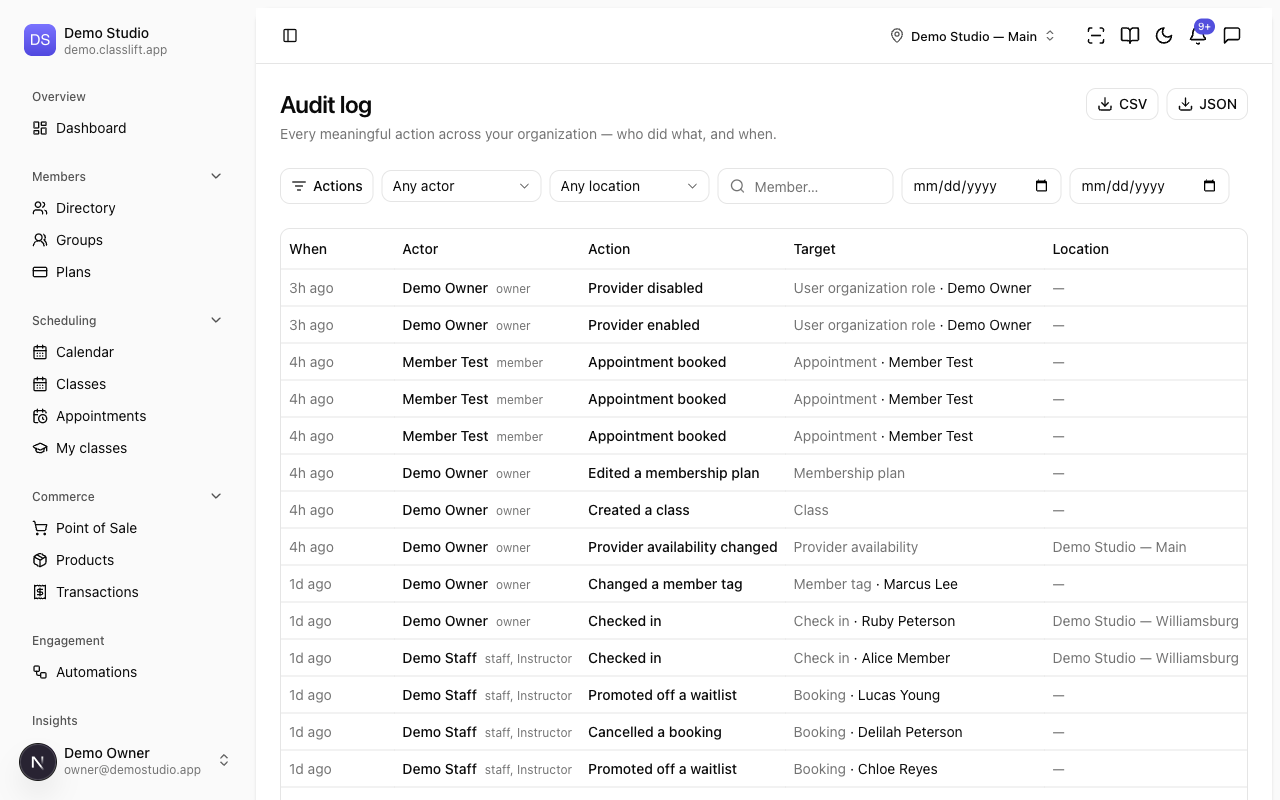
Reading the log
Each entry shows:
| Column | What it shows |
|---|---|
| When | The time it happened (hover for the exact timestamp). |
| Actor | Who did it — a team member, or System for automatic actions. |
| Action | What they did, in plain language (e.g. Invited a teammate, Published a document version). |
| Target | What it affected, and the member involved if any. |
| Location | Which location, where relevant. |
Click a row to open its details — the actor, their roles, the target, and a before/after of what changed.
Finding an entry
Use the filters to narrow the log:
- Actions — pick one or more action types, grouped by area (Membership, Billing & POS, Scheduling & attendance, and so on).
- Actor — a specific team member.
- Location and a member subject.
- A From/To date range.
Click Clear to reset the filters.
Exporting
Use CSV or JSON (top right) to download the entries you're currently viewing — handy for a compliance review or an incident write-up.
Tips
- Filter by Actor and a date range to review one staff member's activity.
- Export before you clear filters — the download includes only the rows currently loaded.
Troubleshooting
| Issue | What to do |
|---|---|
| No matching entries | Your filters are too narrow — widen the date range or Clear them. |
| An action I expected isn't logged | Not every minor click is audited — the log captures meaningful, security-relevant actions. |
| An entry's actor is System | It was an automatic action (like a scheduled sweep), not a person. |