Managing your bookings
For: Members
Your bookings live in one place — upcoming classes you've reserved and past classes you've taken. This is also where you cancel a booking you can't make.
Finding your bookings
Open Bookings — the Bookings tab in the app, or My bookings in the web portal.
- Upcoming shows classes you've booked that haven't happened yet, each marked Booked.
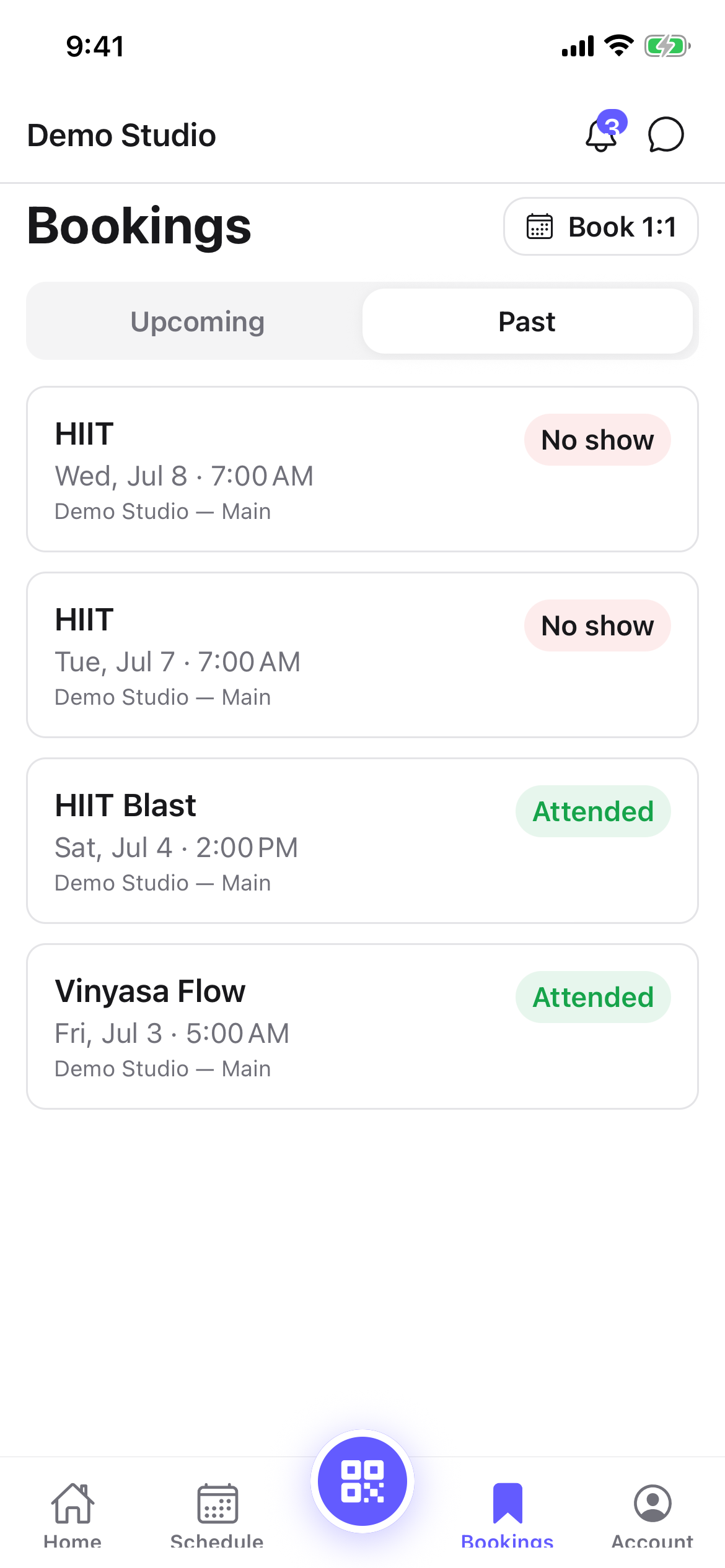
- Past shows classes you've already taken. In the app these are two tabs; in the web portal they're two sections on the same page.
Past classes show their real outcome — Attended if you checked in, No show if you booked but didn't come, or Cancelled if you cancelled the booking. The same badge appears in the app and the web portal.
Cancelling a booking
- Find the class under Upcoming, or open it from the schedule.
- Tap Cancel booking (in the web portal you can also use the small Cancel link on the class).
- Confirm on Cancel this booking? In the web portal you'll see a reminder that late cancellations may count against your plan. Confirm with Cancel booking (or keep it with Keep booking / Keep it).
- You'll see Booking cancelled, and the spot is released to anyone on the waitlist.
Tips
- Cancel as early as you can. Cancelling inside your studio's cutoff may count as a late cancel.
- Cancelling a booking frees your spot for the next person on the waitlist — so cancel rather than simply not showing up.
Troubleshooting
| Issue | What to do |
|---|---|
| No bookings yet | Book a class from the schedule and it'll show up here. |
| I don't see a Cancel option | The class may have already started, or the cancellation cutoff has passed — check with your studio. |
| A class is missing from Past | Only classes tied to your account appear; ask the front desk if a visit wasn't recorded. |