Organization
For: Owners & Managers
The Organization page holds your business profile and the default policies every class inherits unless it sets its own. Go to Settings → Organization.
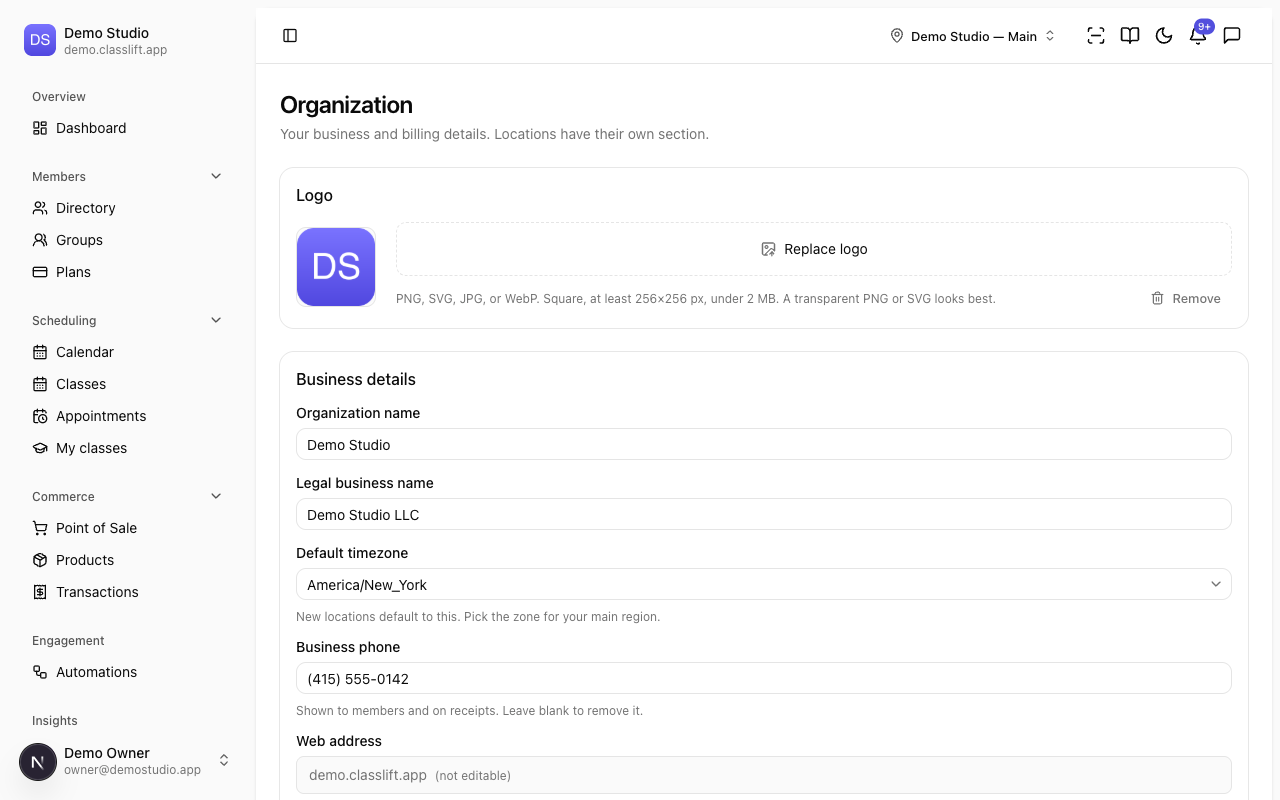
Your logo
Under Logo, upload your studio's logo (Upload a logo, or Replace logo to change it). Use a square PNG, SVG, JPG, or WebP, at least 256×256 px and under 2 MB — a transparent PNG or SVG looks best. Remove clears it.
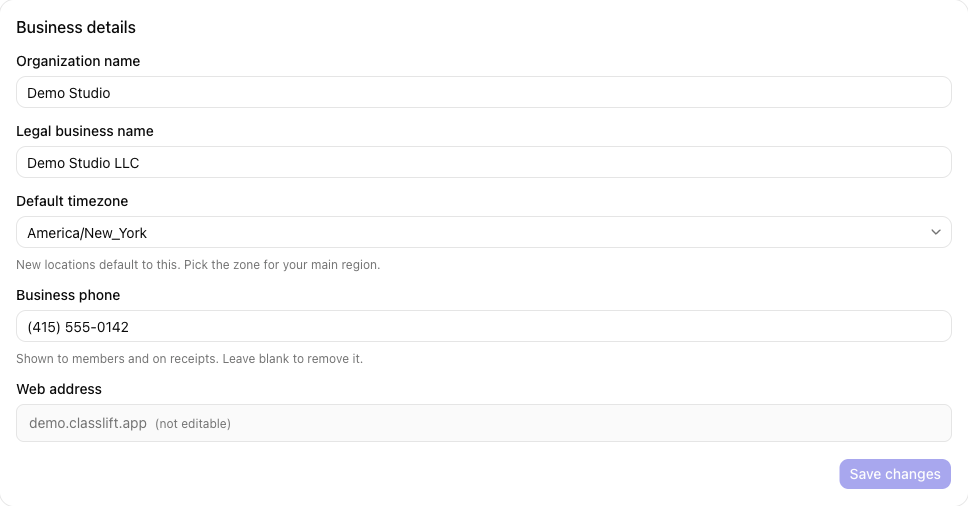
Business details
| Field | What it's for |
|---|---|
| Organization name | Your studio's display name. |
| Legal business name | Your registered business name. |
| Business phone | A contact number shown to members and on receipts (optional). Leave it blank to remove it. |
| Default timezone | The timezone new locations default to — pick your main region. |
| Web address | Your yourstudio.classlift.app address (not editable here). |
Click Save changes to apply.
Default policies
These are studio-wide fallbacks — a class or schedule uses them unless it sets its own. Each card saves on its own with Save.
| Card | What you set |
|---|---|
| Booking & cancellation defaults | Booking opens (hrs before), Cancel cutoff (hrs before), and whether over-allowance bookings are Blocked or Allow & flag for review. |
| No-show handling | What happens when a booked member doesn't check in (Do nothing, Send a warning notification, Charge a no-show fee, or Mark as no-show), the Grace after class ends (min), and the No-show fee if you charge one. |
| Check-in grace window | How early/late a check-in still counts — Before start (min) and After end (min). Locations can override this. |
| Scheduling defaults | Fallback Class capacity, Waitlist cap, and how far ahead to Generate ahead (days). |
| Communications | The Class reminder lead time (hours) (leave blank to send none) and Quiet hours during which no push notifications are sent (email is unaffected; texts will be held during quiet hours too, once texts go live). |
| Commerce | The Default currency that pre-fills new plans and products. |
Billing address
Owners see a Billing address card. Your billing and tax address is managed in your Stripe account — update it there and it appears here. It's read-only in ClassLift.
Tips
- Set your Default timezone and Default currency first — new locations, plans, and products inherit them.
- Use Quiet hours so reminders don't reach members overnight; only push and SMS are held, not email.
Troubleshooting
| Issue | What to do |
|---|---|
| A class ignores a default | The class or its schedule has its own value set — that always wins over the default. |
| My Web address won't change | The subdomain isn't editable here; contact ClassLift to change it. |
| The Billing address is empty | It's read from Stripe — add it in your Stripe account and it'll appear. |