Transactions and refunds
For: Owners, Managers & Front-desk Staff
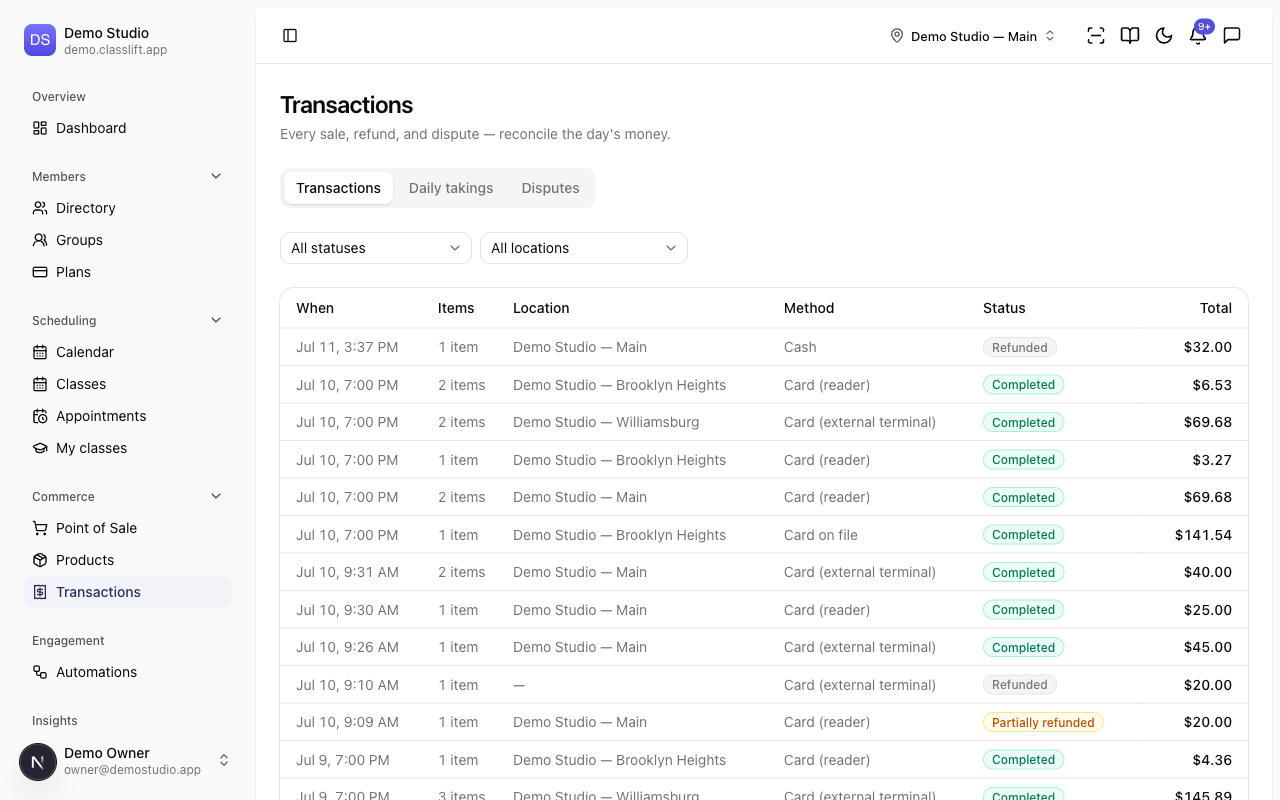
Transactions is your money ledger — every sale, refund, and dispute. Use it to reconcile the day's takings and to issue refunds. It has three views: Transactions, Daily takings, and Disputes.
Front-desk staff can view the ledger, open a sale, and reconcile Daily takings — everything they need to close out the drawer. Issuing a refund is an owner and manager action, so the Refund button appears only for them.
The transactions list
Go to Commerce → Transactions. Each row shows When, Items, Location, Method, Status, and Total. Filter by status (Completed, Partially refunded, Refunded) and by location. Click a row to open the sale.
A transaction's detail
Opening a sale shows its total, status, date, and payment method, plus the line items and a totals block (Subtotal, Tax, Total). If any money has been returned, you'll also see Refunded and Net.
Issuing a refund
On a sale with money remaining, click Refund:
- Choose Full ({amount}) or Partial (then enter an Amount).
- Optionally add a Reason.
- On a Full refund, you can turn on Return items to stock to add the sold units back to inventory at the sale's location — for a stock-tracked retail return. (This isn't offered on a partial refund, since it can't tell how many items came back.)
- Click Refund {amount}. You'll see Refund issued.
For a sale taken as cash or on an external terminal, the dialog warns This refund is recorded, not processed — ClassLift never held the money, so you return it on the original instrument and record it here.
Daily takings
The Daily takings view totals a day's money. Pick a Date to see:
- Processed by Stripe (reconciles against the payout) and Recorded only (cash and external-terminal sales).
- Gross, Refunds, and Net totals, plus a breakdown by payment method.
Takings follow the location selected in the top bar. With a single location chosen, the day runs on that location's timezone — so a late-evening sale lands on the right day for reconciliation. On All locations, the day runs in UTC and totals every studio together; the caption under the date tells you which you're seeing.
Disputes
The Disputes view lists any card disputes or chargebacks, with their Reason, Status, Amount, and Evidence due date. No disputes is a good thing.
Tips
- Reconcile with Daily takings at close: Processed by Stripe should match your payout; Recorded only is the cash and outside-terminal money you handled.
- Only card-on-file and reader sales can be refunded in ClassLift — for cash or external-terminal sales, return the money first, then record the refund here.
Troubleshooting
| Issue | What to do |
|---|---|
| There's no Refund button | The sale is fully refunded, or you're not an owner or manager (refunds are owner/manager only). |
| A refund says recorded, not processed | The sale was cash or external-terminal; refund the customer on that instrument, then record it. |
| A sale is missing from the list | Clear the status and location filters; sales appear here right after checkout. |