Automations
For: Owners & Managers
Text messaging isn't available yet. SMS is awaiting carrier approval, so Send SMS isn't offered when building an automation right now. Every other action works as written.
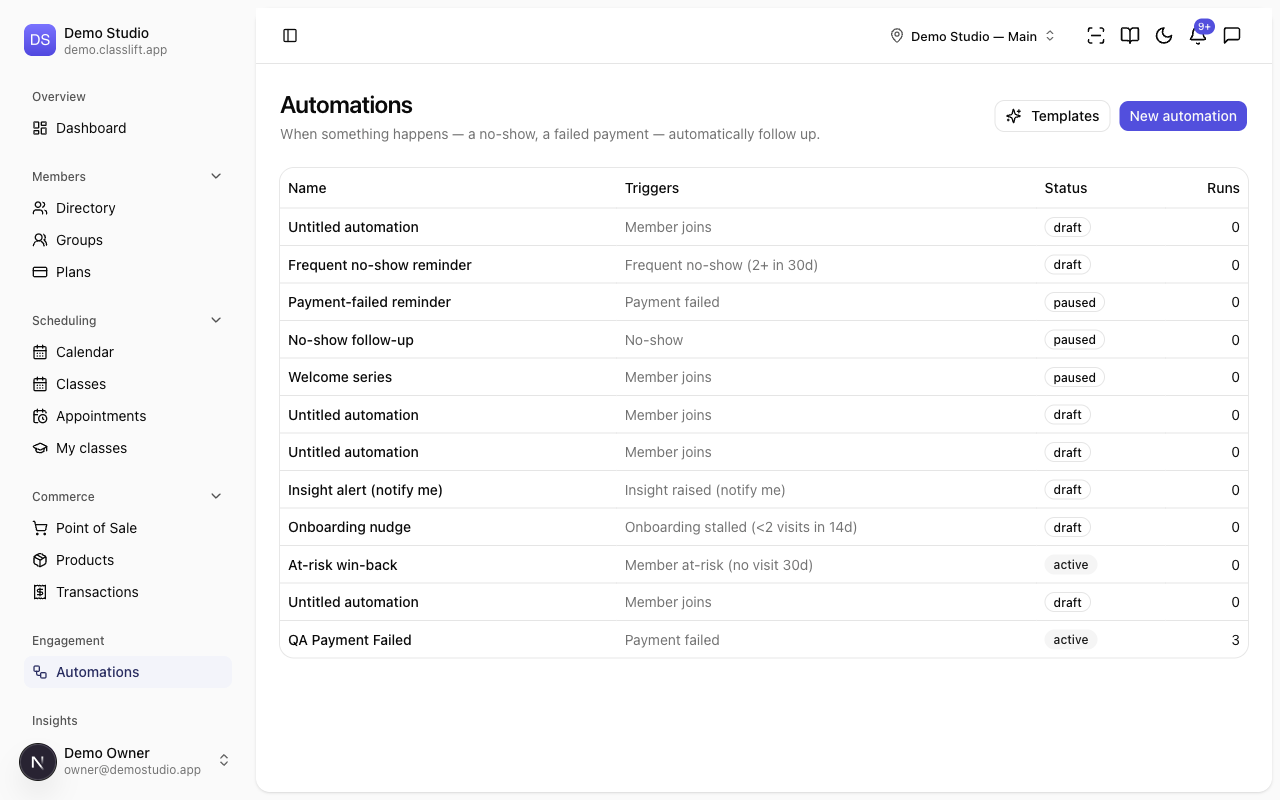
Automations do the follow-up for you: when something happens — a no-show, a failed payment, a new member — automatically send a message, add a tag, or alert your team. Set them once and they run on their own.
Key Concepts
| Concept | Description |
|---|---|
| Trigger | The event that starts an automation — for example a No-show, Payment failed, or Member joins. |
| Condition | An optional rule that must match for it to run (for example, only when severity is critical). |
| Action / step | What it does — Send email, Send SMS, Add tag, Wait / delay, and more, in order. |
| Template | A ready-made automation you can add and tweak, like Welcome series or At-risk win-back. |
| Re-enrollment | An anti-spam setting that stops the same member getting the same automation too often. |
| Status | Whether an automation is active, paused, draft, or archived. |
How it works
- Pick a trigger — the event that should start things off.
- Add conditions (optional) to narrow when it runs.
- Add steps — the messages or actions to take, in order.
- Set re-enrollment so a member isn't over-contacted, then activate.
The fastest start is a template or the recommended starter set — see Creating automations.
Where to find it
- Automations (Engagement → Automations): the list, templates, and editor. Owners and managers only.
Learn More
- Creating automations — from a template, the starter set, or from scratch
- Examples — real-world automations for different studios
- Related: Insights — turn an insight into an automation with Automate