Booking a class
For: Members
Find a class on the schedule and reserve your spot in a couple of taps. This page covers browsing the schedule and booking — including booking for a child on your family plan.
Browsing the schedule
Open Schedule — the Schedule tab in the app, or Schedule in the web portal.
Browse upcoming classes. On the app, tap a date along the top to jump to a day; in the web portal, classes are grouped by day over the next two weeks.
Each class shows its time, and how many spots are left — for example 8 of 20 spots left. A full class shows Class full.
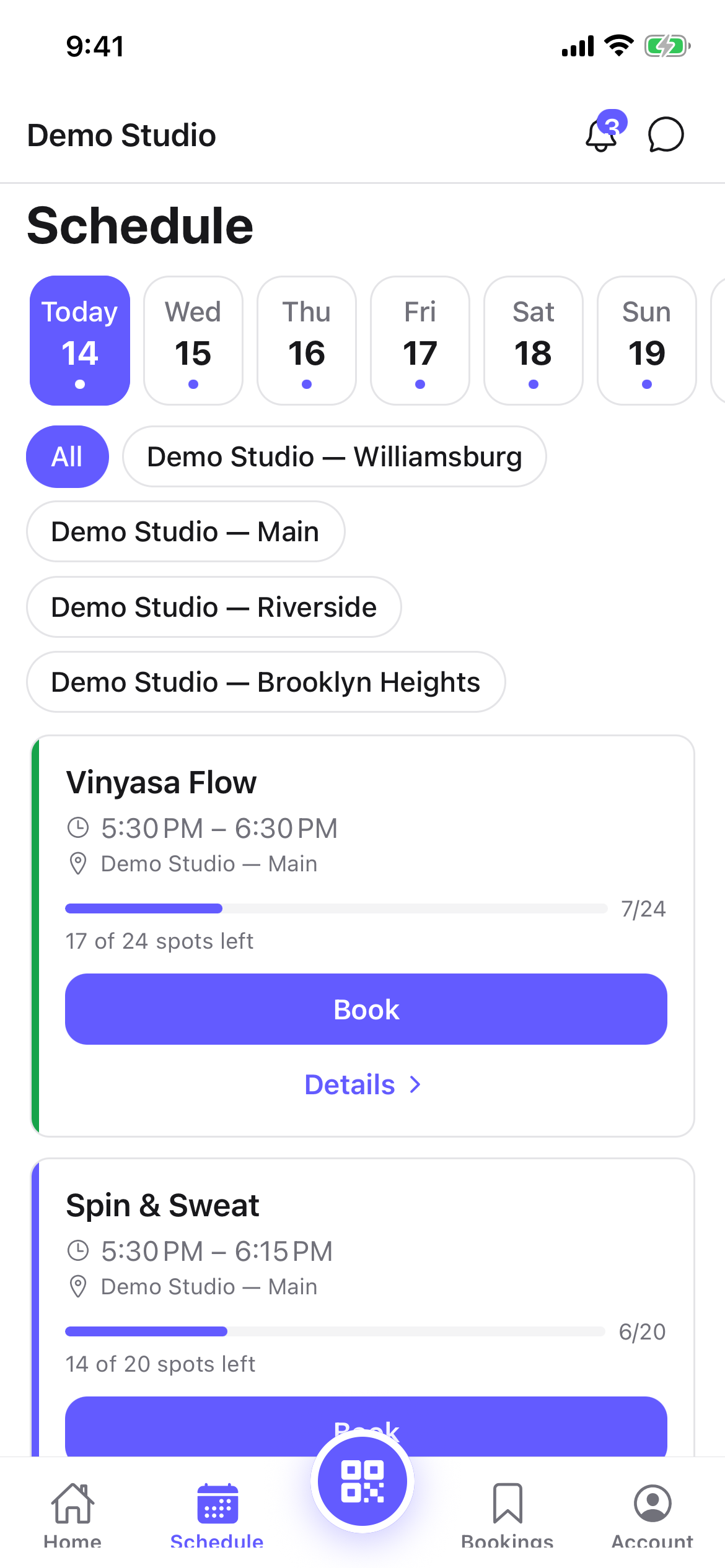
If you belong to more than one studio, use the location filter (All locations in the portal, the All chip in the app) to focus on one.
Booking
- Open the class to see its details (in the app, tap Details).
- Tap Book (the web portal's detail screen says Book this class).
- You'll see You're booked in, a Booked badge appears, and the button changes to Cancel booking.
That's it — now just check in when you arrive, and your booking is marked attended.
Booking for a family member
If you guard dependents on a family plan, the class detail screen shows a Booking for row:
- Open the class details.
- Under Booking for, tap Me or a child's name.
- Tap Book. Booking for a child confirms with Booked in.
Book for yourself and each child separately from the same screen.
Tips
- Booking reserves your spot; it doesn't check you in. Do that when you arrive.
- Can't book? See Troubleshooting below — it's usually a membership that needs attention.
Troubleshooting
| Issue | What to do |
|---|---|
| Your membership needs attention before you can book | Your membership is past due or frozen. Contact your studio to get set up, then try again. |
| The class shows Class full | Join the waitlist instead — see Waitlists. |
| The button says Class ended or Unavailable | The class has already started or was cancelled; pick another session. |