Groups
For: Owners & Managers
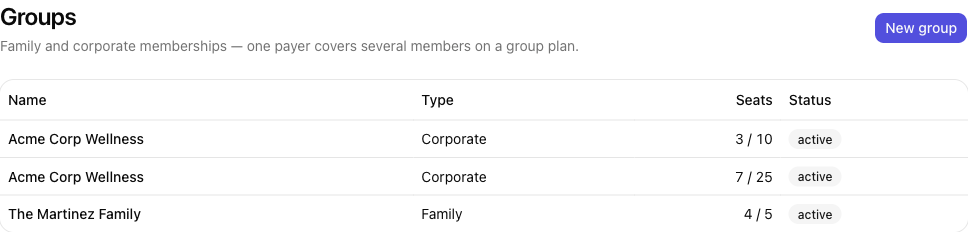
Front-desk staff can view groups and who's in them from Members → Groups, which is handy when a member asks about their family or company plan at the desk. Creating groups and managing seats, owners, and billing are owner and manager actions.
A group is one membership that covers several people — a family or a company — with a single payer. Groups sit on a group plan and let you seat several members under one subscription.
Key Concepts
| Concept | Description |
|---|---|
| Group | A family or corporate membership covering several members on a group plan. |
| Type | Family (a household on a flat rate) or Corporate (a company billed per seat). |
| Group plan | A plan with Group plan turned on, billed as flat rate (family) or per seat (corporate) — see Membership Plans. A group must sit on one. |
| Paying owner | The single member who pays for the whole group. |
| Seats | How many members the group covers, shown as used / max when you set a cap. |
Flat vs per-seat billing
How a group is billed comes from its plan's model:
- Family (flat rate) — one monthly price for the whole household, up to the member limit. Adding or removing members doesn't change the bill.
- Corporate (per seat) — the company is billed for each active member. Adding or removing a member changes the bill.
Two ways groups are set up
- Family — members can start their own. Offer a flat family plan on your public sign-up page and a member can sign up, become the paying owner, and invite their household — no setup from you. They can also add their own children with a consent step.
- Corporate — you set it up. Per-seat corporate plans never appear on the public sign-up page, so you create the group and name the company's billing contact as owner. From there the owner invites employees themselves.
How it works
- Create a group plan — turn on Group plan, pick Flat rate (family) or Per seat (corporate), and set the member limit (see Creating a plan).
- Create the group (corporate) or let a member start one at sign-up (family), choosing its type, plan, and paying owner.
- Add members — add existing members directly, or invite people by email.
- Billing follows the plan's model — flat rate stays the same as members come and go; per seat tracks the number of active members.
Owners can manage their own group
Once you've set up a group and named its paying owner, that owner can manage it themselves from their member account — inviting people by email, removing members, handing the group over, or cancelling it — without coming back to you. Invited people who don't yet have an account can create one from the invite link, give their date of birth and an optional phone number, and sign your required documents before they're covered. See the member-side My team guide for what they see.
Where to find it
- Groups (Members → Groups): create and manage family and corporate groups. Owners and managers only.
Learn More
- Managing a group — create a group, add members, and handle seats and billing
- Examples — family and corporate group setups
- Related: Membership Plans · Dependents and guardians