Rooms
For: Owners & Managers
Rooms are the physical spaces at your locations — a studio, a court, a floor. Assigning classes to a room catches double-bookings and gives you a room-by-room schedule.
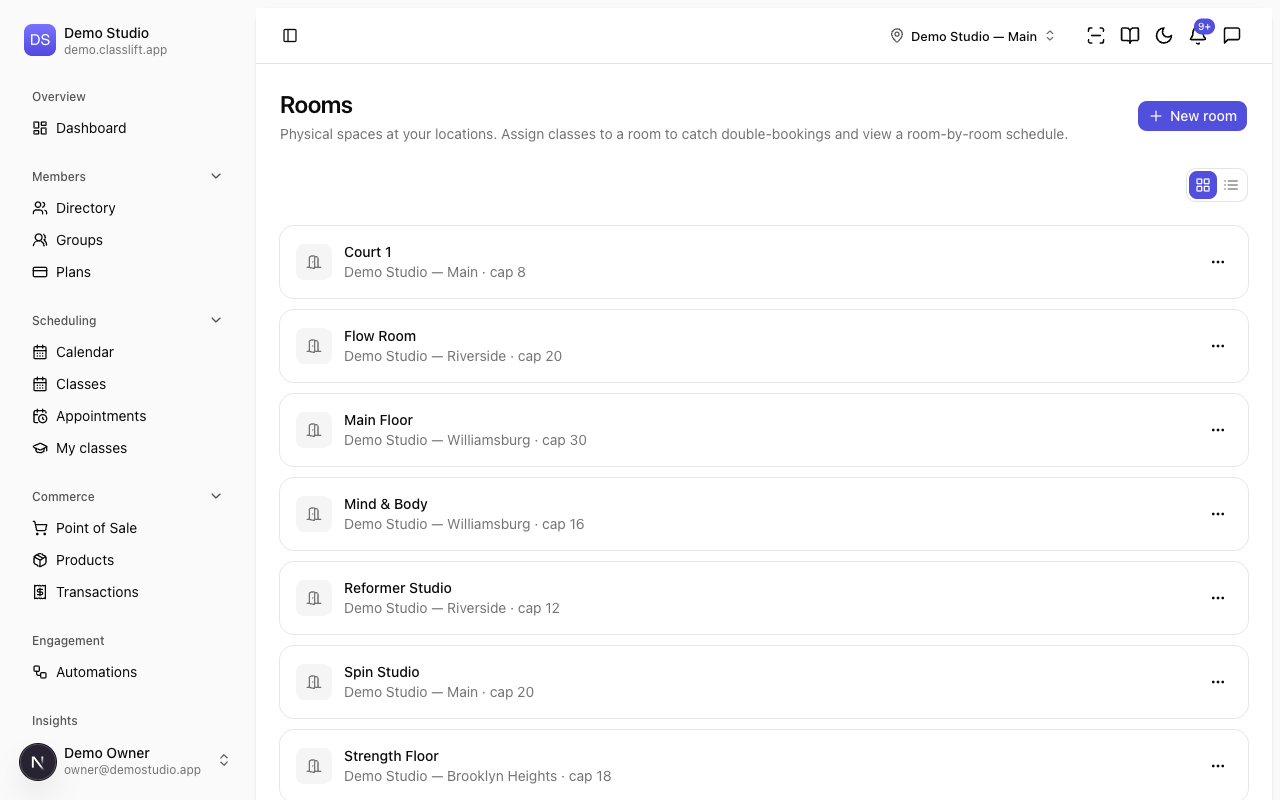
Use the toggle at the top right to switch between a card view and a compact list view — the list view shows each room's location and capacity in one scannable table.
Adding a room
- Go to Facilities → Rooms and click New room.
- Enter the Name (e.g. Studio B), choose the Location it's in, and optionally set a Capacity.
- Click Create room.
The Location can't change after creation. Each room shows its location and, if set, its capacity.
Editing and archiving
Use a room's ⋯ menu:
- Edit — change its name or capacity (not its location).
- Archive — retire a room you no longer use; it shows an Archived badge. Use Restore to bring it back.
Using rooms in scheduling
Once you have rooms, you can assign a class session to one when you schedule it — see Running a class session. ClassLift then warns you if two sessions would clash in the same room.
Tips
- Set a room's Capacity to match the space so scheduling reflects realistic limits.
- Archive rather than delete a room you've stopped using — past sessions keep their room.
Troubleshooting
| Issue | What to do |
|---|---|
| New room is disabled | You need at least one active location first — add one under Locations. |
| I can't change a room's location | Location is fixed after creation; archive the room and create a new one at the right location. |