Managing a group
For: Owners & Managers
This page covers creating a family or corporate group, adding people to it, and handling seats and billing.
Front-desk staff can open Members → Groups to see groups and their members, but the actions on this page — creating a group, adding or removing members, reassigning the owner, inviting, and cancelling — are owner and manager only, because they change what the group is billed.
Prerequisites
You need a group plan first — turn on Group plan, choose How it's billed (Flat rate (family) or Per seat (corporate)), and set the member limit (see Creating a plan). A group must sit on a group plan.
Corporate groups are set up here; family groups can start themselves. Per-seat corporate plans stay off the public sign-up page, so you create those groups. If you offer a flat family plan on your sign-up page, families sign up and become their own owner — you don't create those by hand.
Creating a group
- Go to Members → Groups and click New group.
- Fill in:
- Group name — e.g. Smith Family or Acme Corp.
- Type — Family or Corporate.
- Group plan — the group plan this group sits on.
- Paying owner — the member who pays for the group.
- Max seats (optional) — a cap on how many members the group covers.
- Click Create group. You'll see Group created.
Adding members
Open a group to manage it. The header shows its type, seats (used / max), and status.
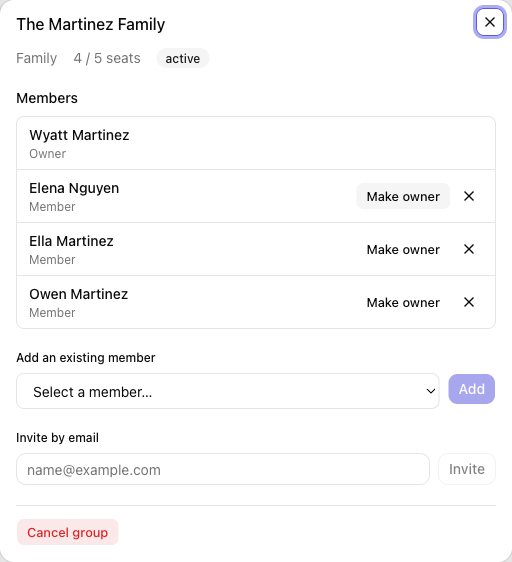
- Add an existing member — pick someone already at your studio and click Add.
- Invite by email — enter an address and click Invite; they get a link to join and activate their coverage. When they accept, they give their Date of birth (required) and Phone (optional) and sign any required documents.
Each member row shows their name and role. For a family, add children as dependents and seat them in the group.
Seats and billing
- Seats show as used / max when you set a cap.
- The paying owner is billed for the whole group on the group plan. How the bill moves depends on the plan's model:
- Flat rate (family) — one price for the household, up to the member limit. Adding or removing members doesn't change what the owner pays.
- Per seat (corporate) — the owner is billed per active member, so the bill goes up when you add someone and down when you remove someone.
- To move the payer, use Make owner on another member's row.
Cancelling a group
Open the group and click Cancel group. Coverage ends for the group's members.
Tips
- Set a sensible Max seats so a family or company can't exceed what you intend to cover.
- Use Corporate for company wellness memberships and Family for households.
Troubleshooting
| Issue | What to do |
|---|---|
| New group has no group plan to choose | Turn on Group plan on a plan first — see Creating a plan. |
| I can't add another member | The group has hit its Max seats; raise the cap or remove someone. |
| A person I invited isn't covered yet | They need to accept the emailed invitation to activate their coverage. |