Running a class session
For: Owners, Managers, Front-desk Staff & Instructors
Click any session on the Calendar to open its details in a side panel — the roster, the waitlist, and every control for running the class. What you can change depends on your role: owners and managers can edit any session, while instructors manage the sessions they teach.
Opening a session
On Scheduling → Calendar, click a session block (or use its ⋯ menu → Open details). The panel opens with the class name and time at the top.
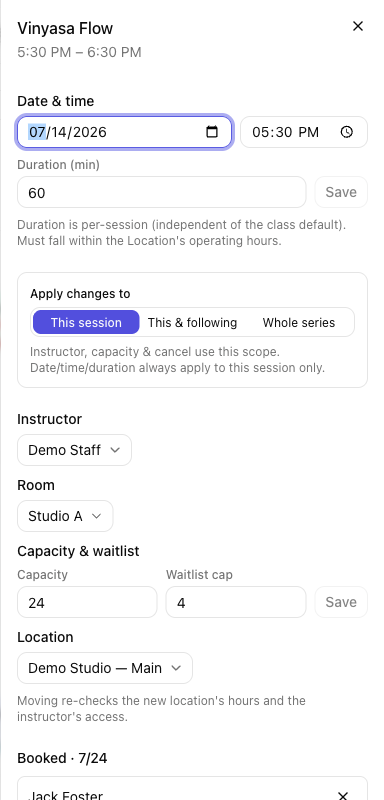
Adjusting the session
- Date & time and Duration (min) — change when this session runs, then Save. Duration here is per-session and must fall within the location's operating hours.
- Instructor and Room — reassign from the dropdowns (choose Unassigned or No room to clear).
- Capacity & waitlist — set Capacity and Waitlist cap for this session, then Save.
For a repeating session, an Apply changes to switch lets you target This session, This & following, or the Whole series. Date, time, and duration always apply to the single session only.
The roster — checking members in
The roster is headed Booked · {n}/{capacity} (with · {n} checked in once people arrive).
- Check in — records the member's arrival and marks the booking attended. You'll see Checked in.
- Mark attended — flips a member who was showing as a no-show.
- The X on a row cancels that member's booking.
- Finalize no-shows — once the session has started, marks every remaining un-checked-in booking as a no-show in one click.
You can also add someone on the spot: pick a member under Add a member… and click Book.
Members normally check themselves in with their QR code at the front desk or a kiosk — see Check-in. The roster is for doing it on their behalf.
The waitlist
When a full session has people waiting, a Waitlist · {n} section appears. For each person you can Promote them into an open spot, or Remove them from the list. Promotion otherwise happens automatically as spots free up.
Requesting a substitute
Click Request substitute to flag that this session needs a stand-in — the block shows a SUB marker so managers can assign one.
Cancelling a session
Click Cancel session. For a repeating session, the Apply changes to scope decides whether you cancel just this one, this and all following, or the whole series. Confirm on the dialog (Cancel session). Every affected session's bookings and waitlist are released and members are notified — this can't be undone.
Tips
- Checking a member in from the roster does the same thing as scanning them at the desk — it records a visit and marks attendance.
- Cancelling the whole series also ends the recurring schedule, so no new sessions generate.
Troubleshooting
| Issue | What to do |
|---|---|
| I can only edit some sessions | Instructors manage the sessions they're assigned to teach; owners and managers can edit any. |
| Check in isn't showing | Check-in controls appear once the session has started. |
| A cancelled session still shows bookings | Cancelling releases bookings and notifies members; the counts clear once the change is saved. |