Using the schedule calendar
For: Owners, Managers, Front-desk Staff & Instructors
The Calendar is your timetable — every session, colour-coded, with booking and check-in counts at a glance. This page covers moving around it, filtering, and adding sessions. To work a single session's roster, see Running a class session.
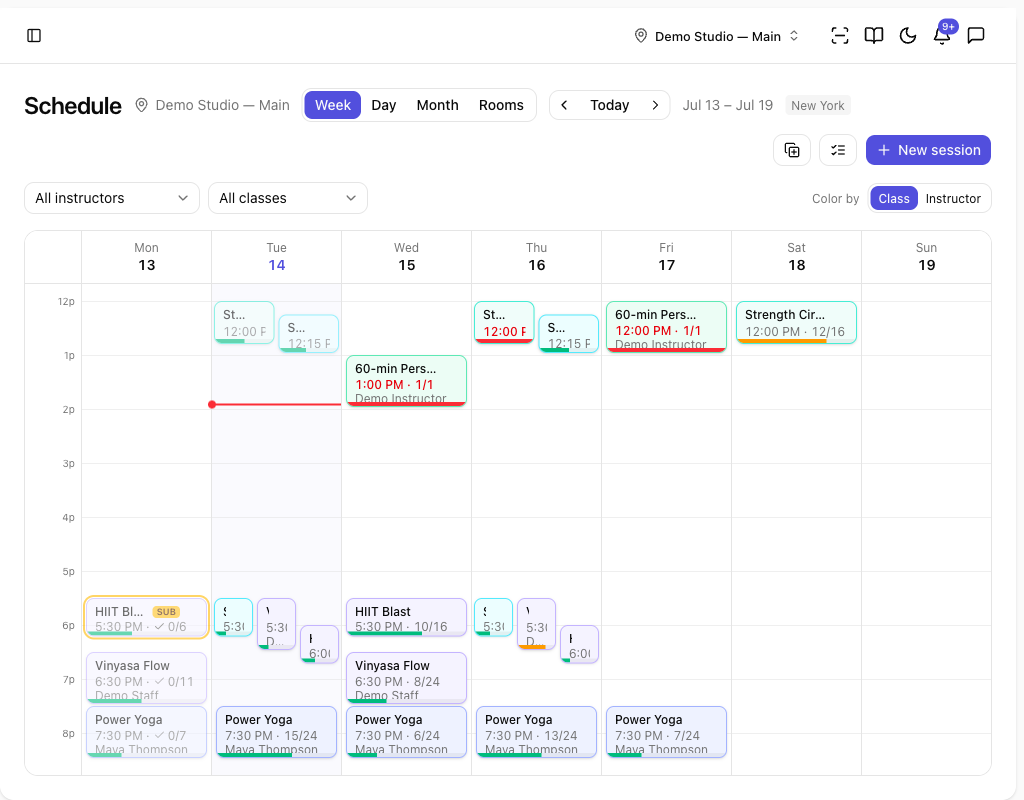
Opening the calendar
Go to Scheduling → Calendar. Times are shown in each location's own timezone (a small badge by the title notes which). If you run more than one location, the active location's name shows next to Schedule.
Changing the view
- Use the view switch to pick Week, Day, Month, or Rooms (a per-room grid).
- Previous / Today / Next move through time. Keyboard shortcuts work too:
wdmrfor views,tfor today,←→to move,nfor a new session.
Reading a session block
Each block shows the class, the instructor, and its counts:
| On the block | Meaning |
|---|---|
| 6/20 (before it starts) | Booked members out of capacity. The number turns red when the session is full. |
| ✓ 5/6 (once it's live or over) | Members checked in out of those booked. |
| LIVE | The session is in progress right now. |
| SUB | A substitute has been requested (the block also gets an amber ring). |
| +3 | Three members are on the waitlist for a full session. |
| A dimmed block | The session has ended. A colour bar shows how full it got. |
Use Color by to tint blocks by class or by instructor.
Filtering
- All instructors / All classes narrow the calendar to one instructor or one class.
- Clear removes the active filters.
Adding a session
- Click New session (or click an empty slot on the grid, or press
n). - Pick the Class, set the Date and Start time, and optionally choose an Instructor, Capacity, and Room.
- To make it repeat, turn on Repeat weekly, choose the weekdays, and optionally set an Until date. (Off means a one-time session.)
- Click Create. You'll see Session created (or Recurring sessions created).
Working faster
- Duplicate week (in Week view) copies this week's sessions to next week.
- Select turns on multi-select: tap several sessions, then assign an instructor, move them to another location, or Cancel sessions in one go. Click Done to leave select mode.
Tips
- A session's ⋯ menu has quick actions: Open details, Request substitute, Duplicate…, and Cancel session.
- Cancelled sessions are hidden from the calendar by default, so a clear grid means nothing needs your attention.
Troubleshooting
| Issue | What to do |
|---|---|
| New session shows "No active classes at this location yet" | Create a class for this location first — see Creating classes and schedules. |
| A session won't move to a new time | The new time must fall within the location's operating hours. |
| I don't see the Classes page | Only owners, managers, and front-desk staff manage class types; instructors work from the calendar and My classes. |