Team
For: Owners & Managers
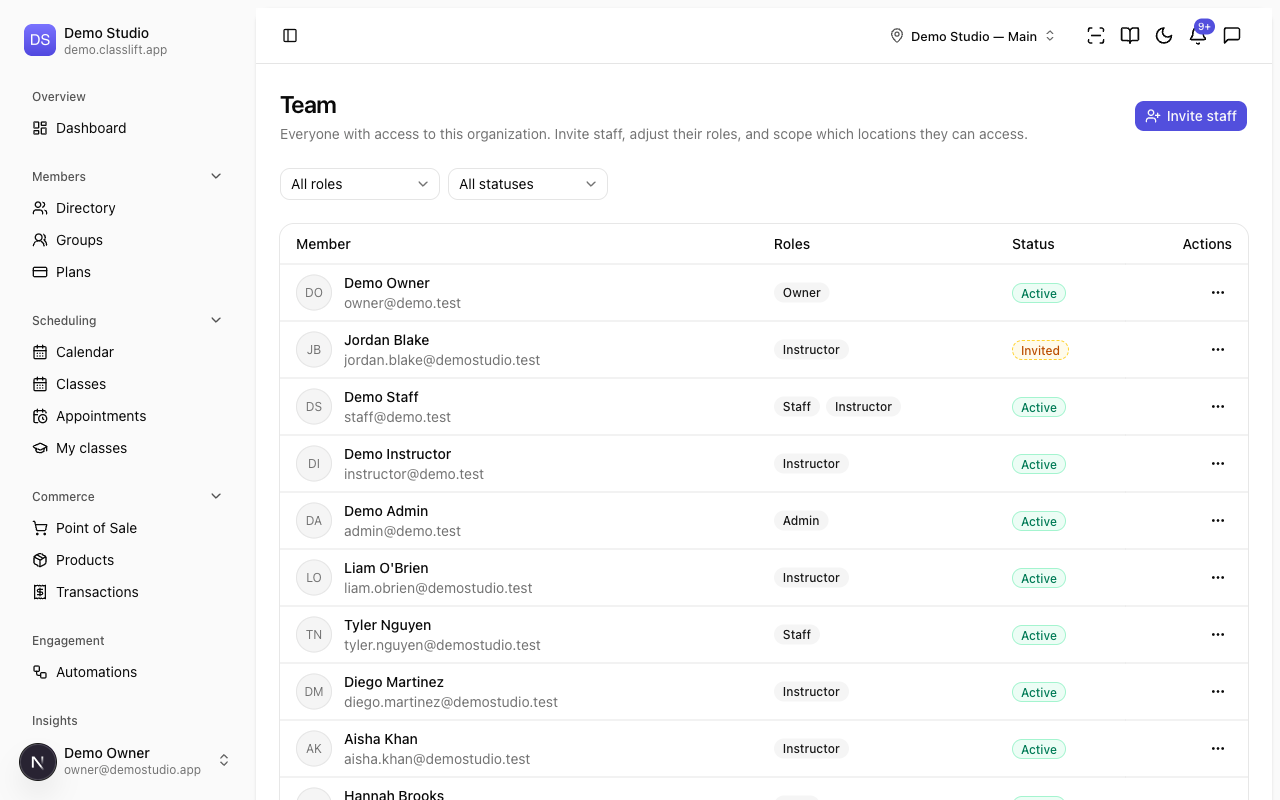
Team is everyone with back-office access to your studio. Invite staff, set what they can do, and scope which locations they can reach. Go to Settings → Team.
Inviting a team member
Click Invite staff.
Enter their Email and choose a Role (its description shows below the picker):
Role What they can do Owner Full control, including billing and ownership transfer. Admin Manage the studio, members, and staff — but not ownership. Staff Day-to-day front-desk operations and member management. Instructor Teach classes and see their own rosters. Click Send invitation. They get an email link to join and confirm their own details.
Invited people show as Invited until they accept, then Active.
Managing a team member
Use a person's ⋯ menu:
- Edit roles — change what they can do (a person can hold more than one role).
- Location access — choose All locations, Only selected locations, or All except selected locations.
- Remove — revoke their access.
For someone who hasn't accepted yet, you'll see Resend invite and Revoke invite instead.
Filtering
Filter the list by role (Owner / Admin / Staff / Instructor) and by status (Active, Invited, and so on) to find people quickly.
Tips
- Give front-desk staff the Staff role and instructors the Instructor role — instructors only see their own classes.
- Use Location access at a multi-site studio so staff only see the sites they work at.
Troubleshooting
| Issue | What to do |
|---|---|
| An invite wasn't received | Use Resend invite, and check the email address is correct. |
| Someone can't reach a location | Open Location access and confirm their scope includes it. |
| I can't invite a plain member | Team invites are for staff roles; members are added under Members. |